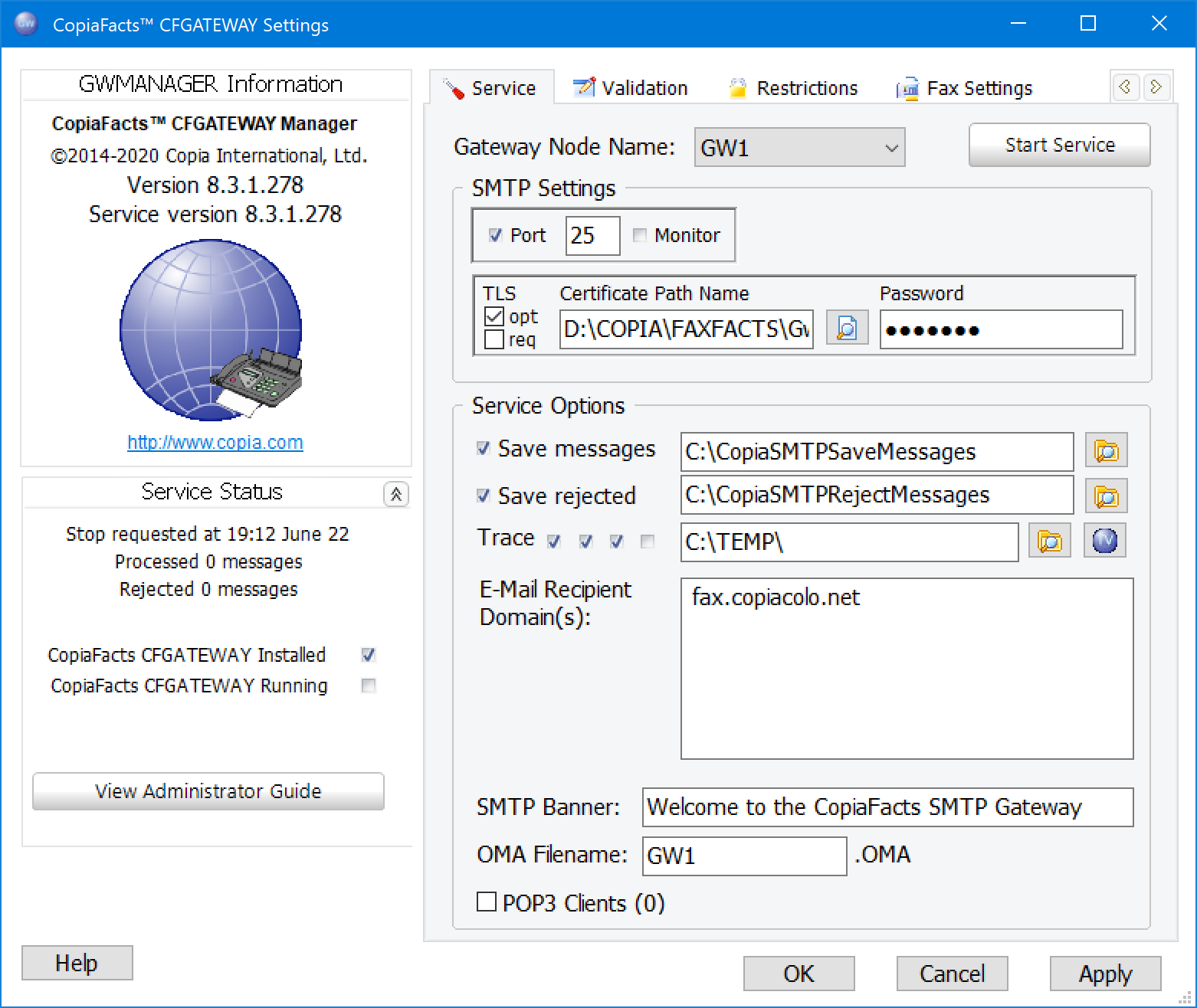
When you installed your CopiaFacts SMTP gateway software, the installation process should have also installed an application called the CopiaFacts SMTP Gateway Manager (GWMANAGER). When you start Gateway Manager, the following screen should be displayed:
Information Panel
The panel on the left hand side has two sections. The top section displays information about the current software version and also has a hot link to the Copia web site where you may obtain information on the entire Copia product line as well as contact information.
The lower section contains status information about the Copia SMTP gateway service. The information applies to either the currently running session or the most recently active session if the service is stopped. The time and date when the service last stopped or started is shown along with message counts for that session. If the service is running, you may click on this section to update the status information. This section also indicates whether the service is installed or not and whether it is running or not.
Configuration Panel
The tabbed area on the right of the window is used to navigate through the various configuration options for the service. The first tab deals with SMTP processing parameters. The SMTP port specifies the TCP port used to read incoming mail requests. This is the standard SMTP port 25 by default. You should make sure that only the CopiaFacts SMTP Gateway is using this port since the port cannot be shared. The SMTP service of Internet Information Server also uses this port. If you have installed IIS on this machine, you must either disable the IIS SMTP service or run the CopiaFacts SMTP gateway on a different machine. Except as described below, the checkbox to enable this port is always checked.
If your CopiaFacts license includes multiple Gateway instances, an additional box will be shown on the server tab:
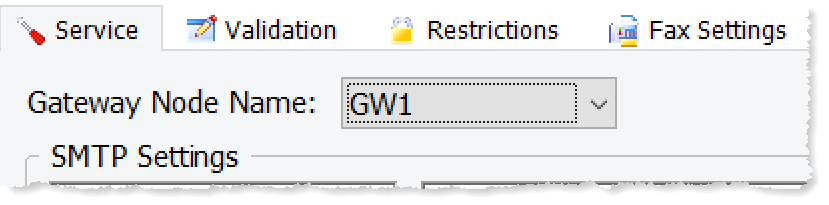
The node names shown will be those you have configured in your FAXCOUNT.HWL file; you must select a nodename, different for each Gateway service instance, which will be used for the Gateway on the current machine. The OMA file written for each instance will use the same base filename, as will the trace file. However if the service detects problem with the gateway node name, the trace messages will be written instead to the file GATEWAY.GWx.
A site with multiple Gateway nodes must use a separate pair of Save and Reject messages folders for each node.
The monitoring checkbox causes an OMACHECK program running (elevated or in the form of the CFOMASERVICE ) on the same machine to monitor that there is a listener on port 25. This provides an additional check that the Gateway is healthy. See Operation Monitoring for details.
The button above the SMTP Settings group allows you to stop and start the gateway. The caption on the button will read either Start or Stop depending upon the current status of the gateway. Use this button to stop the gateway after modifying any configuration settings. The gateway must be stopped and started for any changes to take effect, so you should normally try to do this at a time when the incoming traffic is low. The service can also be started and stopped in the usual way using the MMC plugin under Manage Computer / Services.
To use secure e-mail you can select one of the Transport Layer Security (TLS) options. You are advised to obtain a domain SSL Certificate from a recognized Certificate Authority in order to operate a secure server. Although the keys held with the certificate will still permit reception of encrypted e-mails, some senders will not accept a self-signed certificate. For more information on certificates, see Signed and Encrypted E-Mail, and also see Gateway Signed and Encrypted E-Mail.
By default the TLS option will be none and TLS will not be offered. Setting the TLS option to Optional or to Required will cause STARTTLS to be offered explicitly when an e-mail sender logs in with an EHLO command. For Required, the message will only be accepted if the sender initiates a TLS session. When TLS has been used, the SMTP_USED_TLS variable will be set to yes in the generated FS files.
If you supply a certificate, the Gateway Manager will perform a test load to check the password. The certificate will also be loaded when the Gateway starts and the password will be verified. The Gateway will not start if the PFX file cannot be loaded or the password supplied is incorrect.
 | If the supplied password is incorrect the Windows error message reported in the Gateway trace file may (misleadingly) say that a 'network password' is incorrect. |
Implicit TLS Option
For special applications only, you can enable a second SMTP server in the same Gateway instance, using a different port number (typically 465). This requires ImplicitTLS to be configured on the $email_security command. This causes a second set of port parameters to be shown in the GWMANAGER SMTP settings:
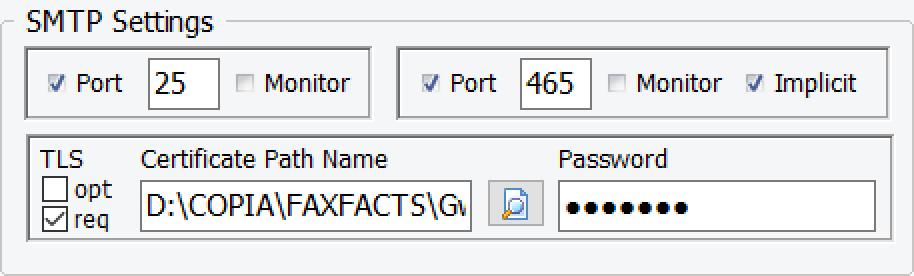
The TLS type in this case will usually be Implicit but it is also possible to run a second server to allow for cases where senders cannot use port 25. Implicit TLS is enabled automatically from first login of an e-mail sender, not when initiated explicitly by the sender after login. Your senders in this case must configure their mail client or corporate mail relay server to use an account on your server to send e-mail for your domain. Mail cannot be sent by logging in to a normal mail server. If this is the only type of incoming e-mail you will be receiving you can configure it as the only SMTP server; otherwise it can be configured in the same CFGATEWAY instance as normal SMTP operations (with or without explicit TLS).
You can also use the second SMTP server as an alternate to the first, without Implicit TLS, using a custom port such as 2525 to receive e-mail if some of your senders have port 25 forced to a server at their ISP. If the Implicit box is not checked, the second server inherits the TLS settings of the first.
When you configure two SMTP servers, all the settings other than those in the SMTP Settings box are shared between both servers. If you need separate settings, you would need to run two instances of CFGATEWAY on different machines.
Save Messages
The service options at the bottom of the first tab allow you to select the saved and rejected message folders, as well as the debugging trace/log folder and the additional scan folders. The saved message folder is where the gateway places all incoming messages and is required even if you are not saving messages. If you check Save Messages then messages will be saved (renamed from .MSG to .BAK, with an accompanying .MIF file) after they have been processed by the Gateway. Otherwise, they will be discarded. The saved message folder defaults to C:\CopiaSMTPSaveMessages. You may change it if you wish.
| You should check that the folder you use has write access for 'everyone', or at least for the account in which the service will be running. |
| For maximum reliability, use a local folder for the Save Messages and Reject Messages folders. |
It is important to define and enable a Saved Messages folder, especially if you are just starting to use the Gateway. If you have misconfigured the Gateway and messages are incompletely processed, then after the configuration has been fixed the .BAK file can be renamed to .MSG for re-processing.
If you keep saved messages, you should arrange to delete or archive the files at regular intervals to avoid a build-up of files. CFHK can be used to configure a HouseKeeping task for this purpose.
Reject Messages
Rejected messages are stored in the folder specified if you check Save Rejected Messages. The rejected messages only include those messages that have no valid fax or special recipients or did not have the correct password (optional) in the subject line. Messages rejected by the gateway due to validation or restriction failures are not saved. Instead the sender receives an appropriate SMTP error message.
| You should check that the folder you use has write access for 'everyone', or at least for the account in which the service will be running. |
It is important to define and enable a Rejected Messages folder, especially if you are just starting to use the Gateway. If you have misconfigured the Gateway and wanted messages are rejected, then after the configuration has been fixed the pair of files (MSG/MIF can be manually moved back to the Saved Messages folder for re-processing.
If you keep rejected messages, you should arrange to delete or archive the files at regular intervals to avoid a build-up of files. CFHK can be used to configure a HouseKeeping task for this purpose.
Trace/Log
The gateway writes some log messages to the CopiaFacts application Windows event log. These messages pertain to start and stop events, as well as serious errors. The event log messages should be useful for resolving gateway problems. However, it is also recommended that you capture additional tracing and log information in the Gateway trace file, especially for a period after original setup, and if you experience any problems or Denial of Service attack.
The gateway trace files follow the naming conventions for other CopiaFacts trace files and are named GATEWAY.GWx, where x is the day number (0=Sunday). When multiple gateway instances are in use, the trace file will use the name of the node instead of 'GATEWAY'. An existing file is overwritten when started automatically at midnight, but appended to if you restart the Gateway during the day. You should specify a local folder for the trace files.
The four 'trace' checkboxes follow the pattern used by FFTRACE (but this program is not used for Gateway logging). They enable respectively each of start/stop tracing, principal operations tracing, tracing for debug purposes, and low-level tracing. The last option can produce large amounts of output, especially when WINMAIL.DAT attachments are decoded.

| startstop | Trace only session start and stop. |
| trace | Trace main actions and all errors. |
| debug | Trace details of processing. |
| lowlevel | Trace more details of processing and scanning. This setting also enables very detailed information about TNEF extractions (WINMAIL.DAT attachments). |
| The domain(s) for which incoming e-mail is to be accepted must be listed in the Recipient Domains field. |
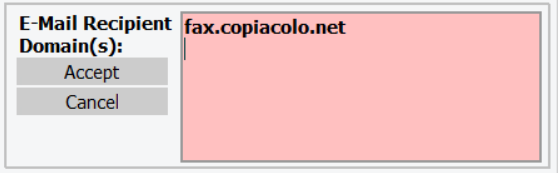
The list of e-mail recipient domains can be changed only when the service is not running. When you make changes in this field, it will change to a red background and you must either accept or reject the changes, so that the Gateway manager can use the changes, before proceeding:
A folder will be created, or moved from the Sender Templates folder, if present there (for use prior to CopiaFacts 8.3.0.195). A list of recipient domains must be provided in order for the Gateway to receive e-mail.
| When changes have been made in this field, you should always OK or Apply these and other changes before exiting GWMANAGER. If you press Cancel at the foot of the Window, all changes will be lost. |
SMTP Banner
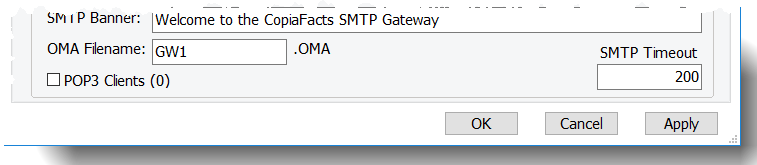
The SMTP banner is the text portion of the greeting message the gateway transmits when email senders attempt to connect to it. The recommended greeting text should begin with the gateway server’s fully-qualified domain name (FQDN) followed by a space and whatever text you wish to include in the greeting, but this pattern is widely disregarded, and you can use any text you wish.
You should be aware that the Windows machine name of the node running the Gateway may be included in the SMTP responses, so if you have named your node with a 'joke' name this may be visible in a sender's e-mail client log, or in an error message if the Gateway rejects their transmission.
OMA Filename
The OMA Filename is the filename only (not the path) for a file to be monitored by OMACHECK running on a different machine. The file is written in the FAXFACTS\LOG folder. This file allows OMACHECK running centrally to detect failure of the Gateway service when it finds a non-recent timestamp on the OMA file. See also Operation Monitoring for more details.
When multiple gateway instances are in use, the trace file will always use the name of the Gateway node as the base filename.
If the Gateway fails to write the OMA file (it retries twice) then it will enter maintenance mode and also send an e-mail notification (if so configured).
The notification e-mails are sent by EMDIRECT, not by writing an FS file, since the fileserver on which the COPIA share resides may be inaccessible at this time. EMDIRECT does not send messages in the same way as COPIAFACTS: instead it requires a login/password to a mailserver and uses the 'via ISP' method. EMDIRECT is configured by EMSETUP, which must enable the appropriate trigger and specify override recipients for the notification if necessary. EMDIRECT is normally configured not to send the same system notification message more than once in any ten-minute period, so you would only receive an e-mail every 10 minutes if the maintenance period continued for longer.
Each SMTP session for an incoming message has a timeout limit which defaults to 30 seconds. This helps to prevent denial of service attacks where a sender keeps a connection open. If you routinely expect to receive very large attachments, or have bandwidth restrictions, there is an override available. You should set this to the smallest value which will avoid incoming messages being rejected on a timeout.
Note that the aggregate size of the incoming attachments and bodies is saved in generated FS files as SMTP_MSGSIZE. The physical size of the incoming message is the size of the save .BAK file.
See the subtopic POP3 Client.
Maintenance mode is automatically entered if the OMA file cannot be written or if there is a significant failure in processing the received messages, for example the inability to obtain an FS file number or to write an FS file. This would normally indicate that the fileserver for the LOG folder or the CALLBACK folder cannot be accessed.
In maintenance mode CFGATEWAY continues to operate the SMTP server and write incoming messages to the local save folder, but the processing of the messages is suspended. Every five minutes the program will try again to write the OMA file and open a temporary file in the ACTIVE folder, and if successful it will come out of maintenance mode and start processing the saved messages. If not, maintenance mode continues and another notification e-mail is sent.
| To operate maintenance mode successfully, you must move the GWTEMPLATES and GWRecipientDomains folders to a local node on the machine running the Gateway. Otherwise incoming e-mails cannot be validated when the Copia Application Data Area (the FAXFACTS folder in the COPIA share) is not accessible. See the Gateway Templates topic for details of how to move these folders. |
Button Controls
The OK button applies all changes you’ve made after confirming your decision and then exits the gateway manager. The changes are written to the registry for the next time you stop and start the gateway service. The Apply button also allows you to save configuration changes, but does not exit the gateway manager. This allows you to stop and start the gateway from within the gateway manager if desired. The Cancel button exits the gateway manager without making any changes. If you exit with the gateway running and you have applied changes without stopping and restarting the gateway, you will be prompted to restart the gateway. If the gateway is not running when you exit, you will be asked if you wish to start the gateway service.
