From build 8.3.1.279, CopiaFacts provides an option for the Gateway to poll for mail in a nominated mailbox or mailboxes on your server. This is collected from the mailbox using a built-in POP3 client.
 | You should consider this option only when setting up an SMTP server with a special domain name is impractical or when company policy does not permit it. For example, using a POP3 client may be convenient for an application where internal company users can send to a specific mail box for 'email-to-fax' messages. The standard SMTP server is usually a better solution when external senders will be sending e-mail for you to process, or when you are providing fax services to other companies. |
| We do not recommend using this option other than for internal e-mail. The standard SMTP server is a better solution when external senders will be sending e-mail for you to process, or when you are providing fax services to other companies. |
| Currently, this option only supports Basic Authentication when logging in to your server to collect e-mail. This may prevent its use if this authentication method is not allowed by your mail server. And for Microsoft mail servers, POP3 may also not be supported when using some other common authentication methods. |
| Even when POP3 is not available, you can still use a special corporate mailbox to provide an internal email-to-fax service; you can arrange to forward all mail received in that mailbox to the CopiaFacts SMTP server, with a 'special recipient' template set up for the domain or sub-domain used. |
The principal advantage of using this method is that it may be simpler and more secure to configure your own corporate mail server in this way. It avoids the need to assign a special domain name and set up mail exchange records in your DNS configuration. In exchange for this simplification, you will miss some of the controls built in to the CopiaFacts SMTP server in the Gateway, such as using the data in the message SMTP 'envelope' to help avoid incoming spam messages. In addition the SMTP server can ensure that incoming external connections are using TLS secure e-mail; this task is the responsibility of your own mail server when the POP3 client merely collects the mail.
Configuration
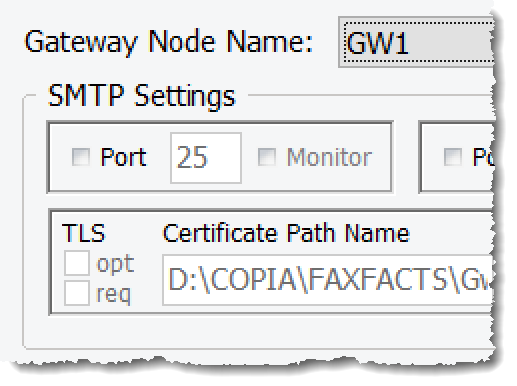
The first step is to turn off the SMTP server components in the Gateway unless you also want to use them for other applications involving e-mail from external sources. Uncheck the checkbox(es) for 'Port' in the top section of the server tab in GWMANAGER:
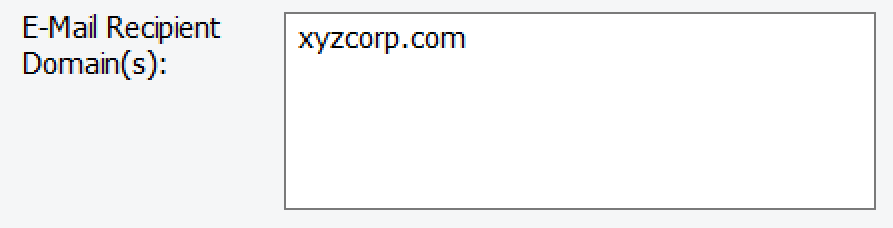
You must next ensure that there is a Recipient Domain configured for the domain of the mailbox you wish to access using the POP3 client. This is set in the E-Mail Recipient Domains box on the Services tab:
Do not set a public domain such as gmail.com as a recipient domain, except for short-term use with a new account set up for testing. A warning will be displayed for the most common such domains.
| NEVER USE AN EXISTING EMAIL ACCOUNT, even only for testing the POP3 feature. There may be a lot of e-mail stored on the server for an existing IMAP account, and the Gateway POP3 client is intended to download and delete from the server all the mail it finds in the account. |
| Always set up a new account for exclusive use by the Gateway; do not share it with any other e-mail client, or access it from another client. And do not use this account for any other purpose, especially not a recipient of error notifications; this could set up a loop if invalid e-mails in this mailbox are sent back to the same mailbox. |
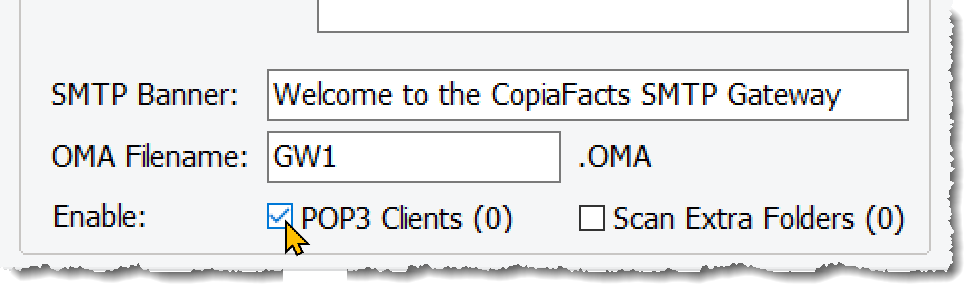
Then, below this on the Service tab, check the box to enable POP3 Clients. Adding a check mark in this box will open a new POP3 Clients tab, with a 'New' button to allow you to specify Client details.
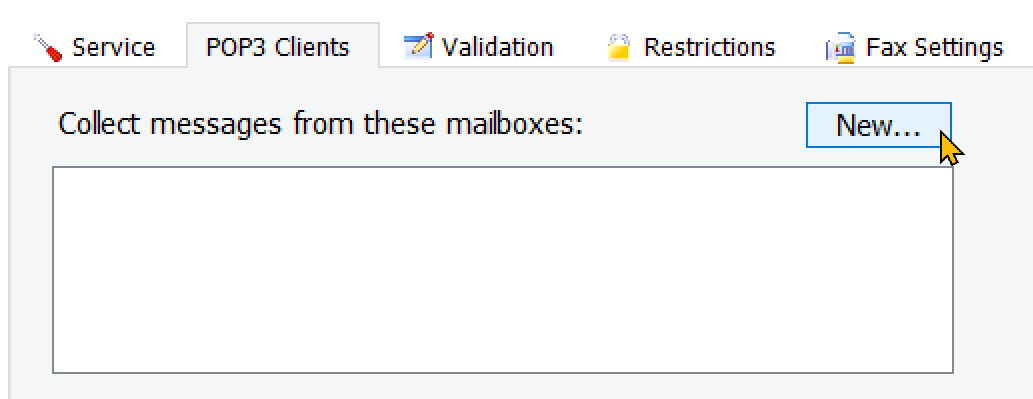
The properties dialog for the Client will then appear below. You can specify more than one mailbox if your application requires it. The properties other than the server and credentials will be copied from the last created mailbox; the first one will have default settings.
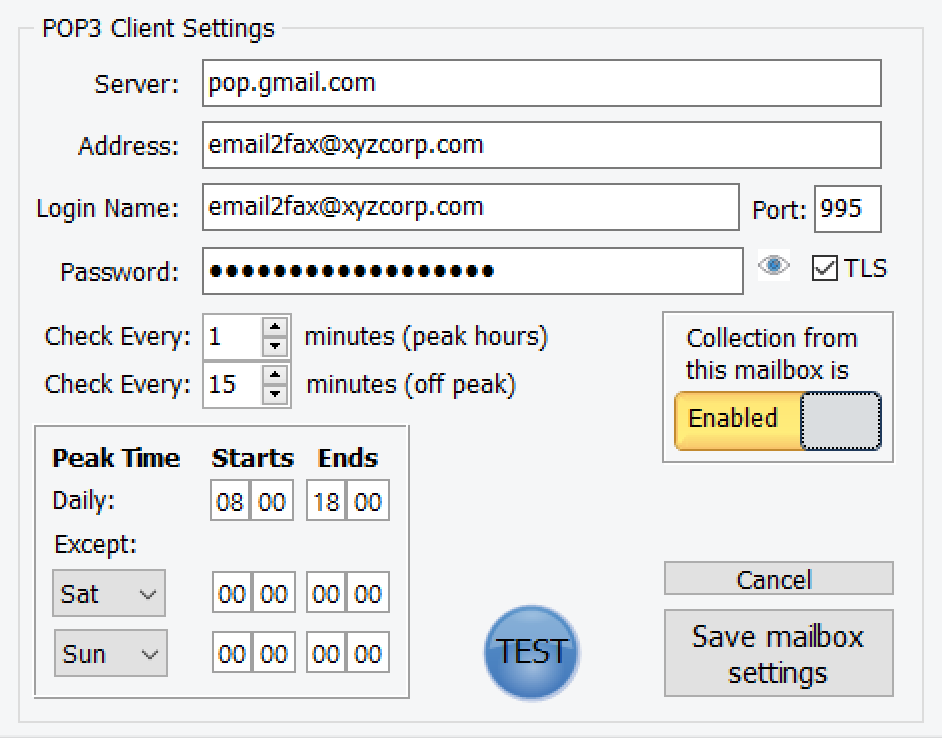
You will normally set Port 995 and TLS. Port 110 may be used by a server that does not support implicit TLS.
If the domain in the Address field is not in the Recipient Domains list you will be warned and will not be able save the POP3 settings; Again, always set up a new e-mail account for use only by the Gateway.
Note that the login name for some servers may be different from the full e-mail address. And the 'eye' button alongside the password field is only shown to allow verification of a 'New' client setup. not when editing an existing one.
You may wish to increase the intervals between checks of the mailbox content outside peak hours, or change the settings for two non-working days. When the start and end times for peak hours are the same, no peak hours are in effect. At midnight the settings for the next day become effective; at the change to or from peak hours, a fresh delay is started for the appropriate interval.
Pressing the test button will make a connection to the server and either report the number of e-mails in the mailbox or display an error message.
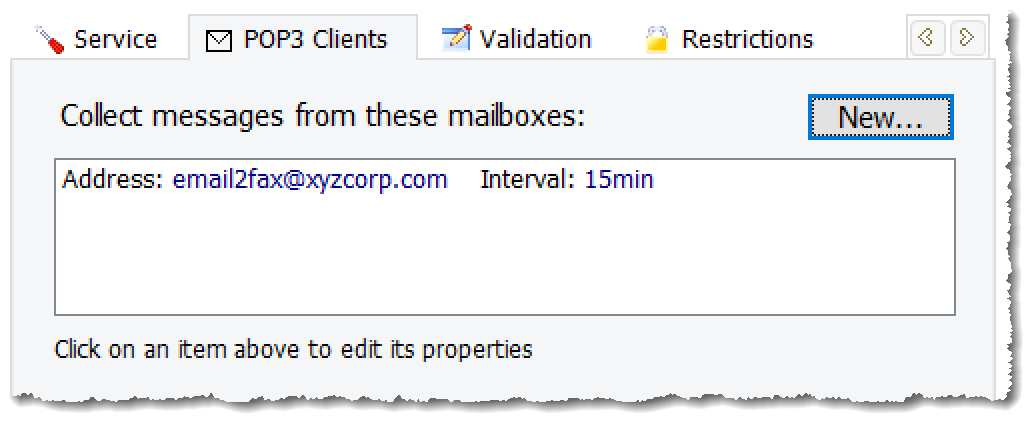
Click the Save button to save the settings. The box at the top of the tab will then show a summary of the properties; the delay time shown is the value applicable at the time you open this tab. When you return to the Service tab it will show the number of Client mailboxes defined.
The Recipient Domain, Sender Templates, Validation Options, and Error handling are then configured in the same way as for e-mail received by the SMTP server and as described in the other Gateway topics.
For mail from POP3 mailboxes, the 'Sender IP Address' restrictions, if specified, will be ignored. And the 'envelope' From address is always assumed to be the address supplied for the mailbox (see above); any e-mail To recipients other than this inside a collected message are ignored and the validation check for a 'matching envelope' sender is not used.
After collection and successful saving, the e-mail message is deleted from the mailbox. If the collected message cannot be saved, or if the client fails to connect to the mailbox, a GWMSGFAIL notification is triggered and will cause a notification e-mail to be sent, if this is enabled on the Gateway error handling tab.
Mail Server Configuration Notes
| GMail | To access a GMail account from an application such as the CopiaFacts Gateway POP3 Client, it is recommended that you set up an 'App Password' for use in the application. |
| Follow the instructions at https://support.google.com/accounts/answer/185833 |
| For GMail you will normally need to use pop.gmail.com as the server, with 995 as the port and with TLS selected. |
