Check Operations Monitor Alert Files
OMACHECK [omaname ...]
This program allows you to select and monitor one or more OMA files that are written by each COPIAFACTS server engine program( and other programs) every fifteen seconds. If an OMA file is found to be older than a specified interval, OMACHECK can launch a program you supply, reboot the machine, or send you an e-mail notification.
To monitor an active CopiaFacts system it is important to run OMACHECK on a machine other than those running your critical CopiaFacts applications. The machine running OMACHECK must be able to see the COPIA\FAXFACTS\LOG folder where the .OMA files are located.
 | You can use EMSETUP to configure EMDIRECT to send an e-mail automatically whenever OMACHECK is activated on failure. This is preferable to using CFUTIL EMTO, because this requires that a COPIAFACTS instance is still running to send the e-mail, whereas EMDIRECT does not. See below. |
| A provided OMACK.CMD file can be used to shut down and restart BladeWare and COPIAFACTS without a reboot. OMACK.CMD will almost always need to be edited (see the embedded comments) before use at your site. On an upgrade, this file will not replace the older limited version if it is already found in your Copia folder under Program Files. However a copy is also placed in the FAXFACTS\Samples folder in case you wish to copy it over the original. |
The OMACHECK program has the following features:
•You no longer have to enter 'extra' OMA filenames on the command line. Once added to the list, the details are saved in the registry. However if a filename is present on the command line it will be added to the saved 'extra' OMA files the first time the new version is run.
•You can specify a separate executable, batch or command file for each OMA activation; however (see above) we recommend that you use the built-in notification triggers to send an e-mail when OMACHECK is activated, instead of using a batch file.
•Document Converter licensed nodes (ones with an assigned nodename) are picked up automatically.
•It allows a blackout period to be specified when OMACHECK will not be activated. This allows applications to be closed for backup or other maintenance.
•From CopiaFacts 8.3.0.226, OMACHECK can also be configured to run its monitoring as a Windows service. For details, see the CFOMASERVICE subtopic.
•When run elevated or in service mode on a CFGATEWAY node, the program checks to see if the SMTP port is being listened to, and restarts the service if not. As with OMA files, the activation does not occur until a listening port has been detected, and then later is not found. For information on configuring port monitoring, see the CFGATEWAY topics.
OMA files written by other than the COPIAFACTS server engine (e.g. FFEXTERN.OMA, JOBMON.OMA) must be explicitly added to the list of OMA files using the Add button on the dialog. Only manually added items can be deleted; the items automatically picked from the HWL file can only be disabled, not deleted. No path need be specified because these files are always written in the LOG folder under the base CopiaFacts folder. Missing OMA files appear in red in the display and 'old' files in blue.
You could specify as the launched program a utility to send you e-mail or send an SMS message to machines on your network, or allows time for another auto-restart procedure to attempt to restart COPIAFACTS or the network machine.
OMACHECK starts minimized, and you must click the taskbar icon to bring up the window where you can change the settings. Iconizing the program (using the Start Monitoring button) causes it to start monitoring the specified OMA files.
| OMACHECK is not monitoring when you can see its window. |
You can set a notification trigger in EMSETUP which will cause a notification e-mail to be sent if you have accidentally left the OMACHECK window open. This will activate when the window has remained open for 30 minutes. The taskbar icon is also flashed every five minutes (and then remains highlighted) in this state.
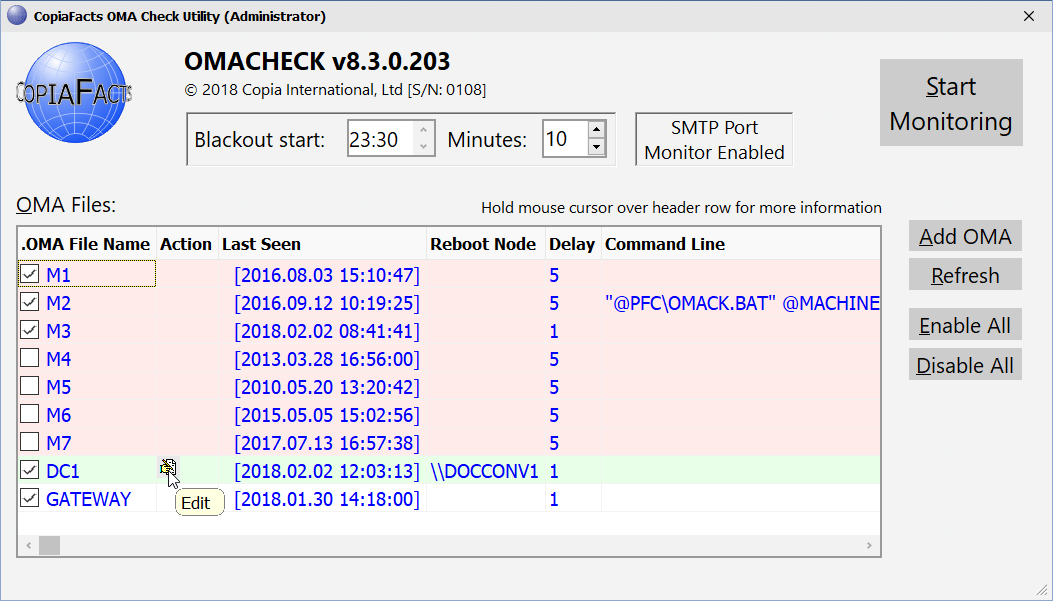
Note the following features in the above screen shot:
•OMA Check is not monitoring; it does not start until you click 'Start Monitoring'
•M1, M2 and M4 to M7 are not running and have not been run for a while
•If a failure of M2 activates OMACHECK a batch file will be run. In all the other engine nodes, messages will only be sent if configured in EMSETUP notification triggers.
•M3, DC1 and GATEWAY are active and will be monitored when OMACHECK starts.
•Machine DOCCONV1 will be rebooted if failure to write its OMA file activates OMACHECK.
•The mouse cursor has enabled the Edit button which floats in the action column
•A blackout period has been set which suppresses monitoring for the specified period.
•The program is running elevated on a CFGATEWAY node on which port monitoring has been enabled. The message box appears only when this is the case.
•(not shown above) A pop-up hint on the date/time field of an out-of-date engine OMA file will warn you if OMA is not enabled for the node when running on the same machine as OMACHECK.
When activated for a node, OMACHECK allows you to specify the actions to be taken, based on what caused OMACHECK to find an OMA file with a non-current time stamp. COPIAFACTS and FFEXTERN will attempt to write a .OMX file alongside the .OMA file when they stop updating the latter file. Three types of action are possible:
•The specified machine can be rebooted. To do this you must provide the machine name to match the node that you are monitoring and wish to reboot. If OMACHECK is running on the same machine, you should also configure it as described below to restart automatically on reboot.
•A program or command file (batch file) can be run. The process is passed the node name and the machine name as well as a code which describes the cause of the OMACHECK activation, if available.
•An e-mail notification can be sent to specified e-mail addresses. To do this you must have configured notifications in EMSETUP on the machine running OMACHECK and selected OMACHECK in the list of notification triggers.
No action will be taken for a missing or old OMA file until a corresponding 'good' (i.e. recent) OMA file has been seen. This feature works both on starting OMACHECK and after an OMA failure has been detected for which no machine reboot has been specified. This allows you to reboot or restart a machine from a command file run by OMACHECK and avoids repeated activation of OMACHECK after the node has failed once. On the other hand, if you configure OMACHECK to reboot a different failed machine itself, OMACHECK will activate again (after ten minutes) if the reboot has failed to make the OMA file current.
OMACHECK Action Filtering
For each monitored node, you can select which termination reasons will cause each action to be performed. The .OMX file written by each node will contain the potential activation events encountered in the ten minutes before stopping the OMA updates, and OMACHECK will only take note of an OMX file written in the ten minutes preceding the time at which the out-of-date OMA file was detected. If no OMX file is available (for example if OMACHECK was activated by a file server failure) then the actions specified as Default are performed.
| The kill flags section of the action list are subject to change at any time, and sometimes a flag may be re-purposed. When this is necessary we try to use a rarely-used flag but this may not always be possible. Normally kill flags should be set only on specific advice from Copia support. |
| The default delay time for all actions will be set to 5 minutes. If you set a shorter delay time, it is vital to ensure that all machines being monitored have identical time settings. Specifying an external time server on all machines is recommended. |
To configure which actions are performed check the actions on the dialog for editing the node properties, which appears when you click on the floating icon in the Action column of the main OMACHECK window:
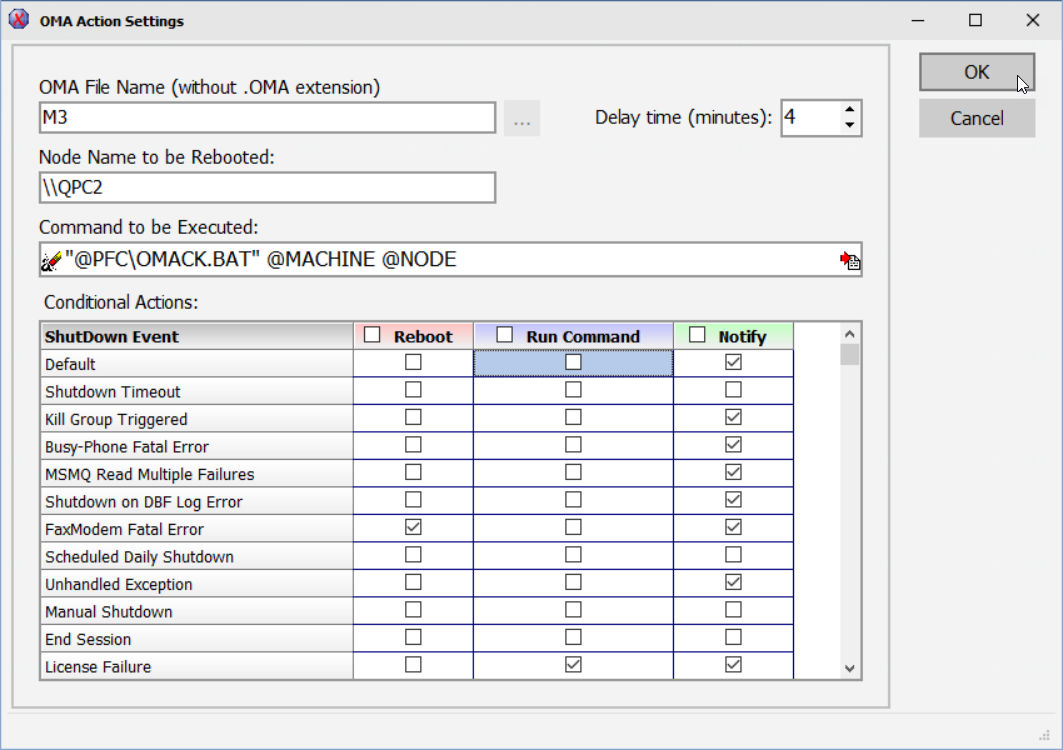
The Reboot column of checkboxes will be disabled and ignored if no machine is specified to be rebooted; the Command column will be disabled and ignored if no command is specified or if the named command is not present; the Notify column is disabled if OMACHECK is not enabled in EMSETUP, or if EMDIRECT has not been enabled in EMSETUP for any notifications, on the same machine; otherwise it is assumed that a working mail server has also been set up for notifications.
Some of the checkboxes in the Reboot column are colored black and are disabled. A reboot is not recommended for these cases.
The checkbox in the heading line will turn on or off all the checkboxes in the column. However it is rarely necessary to enable both Reboot and Run Command columns in full, so checking the heading box in one of these two columns will uncheck all the boxes in the other. It is still possible to check items individually in both the columns.
Reboot Action
The reboot option allows you to force reboot of a machine when the OMA check is activated. To do this you must provide the machine name to match each node that you are monitoring and wish to reboot. It is also necessary to be logged in to the machine in question with sufficient privileges to allow you to reboot it. For information about setting such privilege, see NTREBOOT. OMACHECK will attempt to set reboot privilege if not enabled for the login, but may not succeed in a controlled environment.
| For several Shutdown Events it is not a good idea to enable re-booting the machine when the event causes OMACHECK to be activated. Reboot is suppressed for Manual Shutdown, End Session, License Failure, Startup failure, and Scheduled Daily Shutdown. |
| For serious BladeWare failures such as Bad Session and ECTF_System errors (as reported in the engine trace) a reboot is always required. An attempt to restart either BladeWare or CopiaFacts without a reboot will normally fail. |
If launching a command is specified (see below), OMACHECK waits one minute before performing the reboot. After performing a reboot of a machine other than the one it is running on, OMACHECK suppresses action for the same monitored OMA file for ten minutes.
If you need to run OMACHECK with elevated privilege, so that it can reboot machines or restart services, you must ensure that OMACHECK is always started in this way, unless you are running it in service mode. You also need to ensure that OMACHECK is started at boot time if it is configured to reboot the machine that it is running on. OMACHECK can be started from STARTCOPIA. If you need to run OMACHECK elevated, the best way to do this is not to use STARTCOPIA but instead to start it using Windows Task Scheduler, which has an option to run a process elevated and does not then ask for UAC authorization.
See also the option to run the file monitoring as a service application.
'Run Command' Action
The "Command-line to execute" box must contain a valid Windows command line. If the pathname of the program contains blank spaces, double-quotes must be used to enclose the pathname. If you wish to perform different actions depending on which OMA file has 'failed', you can use the following variables on the command line to be run. No other CopiaFacts system variables are expanded.
| @node | The nodename which activated OMACHECK (e.g. M1) |
| @machine | The machine name which will be rebooted (e.g. \\FAXFACTS). If no reboot is specified, the variable expands to blank. |
| @pfc | The COPIA folder under the Program Files folder for the operating system. |
| @pfd | The drive letter and colon from the start of the 'pfc' folder. |
| @omx | An integer encoding the conditions which led up to stopping the OMA being written. Please contact Copia support if you need to use this value, which may change in different releases. |
The command-line is executed with the current folder as the Program Files\Copia folder. You can also use the FAXFACTSDIR environment variable to access the FAXFACTS folder (UNC pathname), and the FAXFACTSLOCAL environment variable will contain the local name of this folder if it is local. The latter variable will only be set automatically if you have run SERCONF. The command-line is run before the reboot operation is performed, if specified, and running a command causes the reboot to be delayed one minute.
The default batch commands OMACK.CMD. OMACBW.CMD, OMACK.CMD can be used to restart COPIAFACTS. and the BladeWare or Brooktrout services, without rebooting. We have not found it necessary to restart XCAPI in these circumstances.
To restart a service from a batch file run as a command action, use the Windows Task Scheduler run command as described in the CFTASKS topic.
Notification Action: Sending an e-mail when OMACHECK has fired
Earlier releases recommended an OMACK.CMD command file to call EMTO to send an e-mail. Because EMTO wrote an FS file to send an e-mail, the e-mail would only be sent if there was a COPIAFACTS instance still running and configured for sending e-mails. The notification could therefore fail if multiple nodes were affected by a problem, or if only one COPIAFACTS node was configured. However a sample OMACK.CMD file is still installed in the Copia folder under Program Files, principally for use at sites where you need to reliably restart COPIAFACTS without rebooting the computer.
To improve the reliability of notifications, it is strongly recommended that you do not use the batch file process to send an e-mail. Instead:
•Run EMSETUP on the machine which is running OMACHECK.
•Enter the details of your mailserver and the default notification address(es), or select the server provided by Copia for notifications.
•Make sure that 'Enabled for System Notifications' is checked.
•Click on 'Set up Notification Triggers' and ensure that OMACHECK is checked. Custom notification addresses for this trigger can also be specified by clicking the underlined link, along with the option to send a copy notification to Copia support staff, with trace files. Trace files are only attached when appropriate for the action.
•When EMDIRECT is invoked by OMACHECK, it also appends the last ten CopiaFacts Windows Event Log messages to the e-mail text.
When you have set this up and tested you can clear the OMACHECK 'Command line to run' boxes unless you need additional special processing.
Testing OMACHECK
If you need to test that OMACHECK successfully reboots a node, you need to kill COPIAFACTS using the red X button or task manager; when doing a normal shutdown, rebooting is suppressed. And if COPIAFACTS is running as a service, you also need to stop the CFESERVICE application to prevent it attempting to restart COPIAFACTS. Then wait for the configured delay time to check that a reboot is triggered, and if specified, a notification is sent.
CFOMASERVICE
The option to run the file monitoring as a service application is described in this subtopic.
