OMA File Monitoring in a Windows Service
CFOMASERVICE commandparameters
OMACHECK now has the ability to operate its file monitoring component in service mode.
The Service Mode of OMACHECK can be enabled when CFOMASERVICE.exe is present in the COPIA Program Files folder and when OMACHECK is run elevated. Otherwise, when the service is not used, OMACHECK must be left running minimized to monitor the OMA files.
 | You can set OMACHECK to always run elevated by right-clicking the executable file and selecting Properties / Compatibility, then Run this Program as Administrator. |
When you install and enable the service, OMACHECK must be run on the same machine to configure the scanning options and actions in the same way as when it is left running to do the monitoring itself. See the main OMACHECK topic for details.
After configuring the monitoring options and actions, OMACHECK will be closed (not minimized) when you start or restart CFOMASERVICE.
Initial Setup
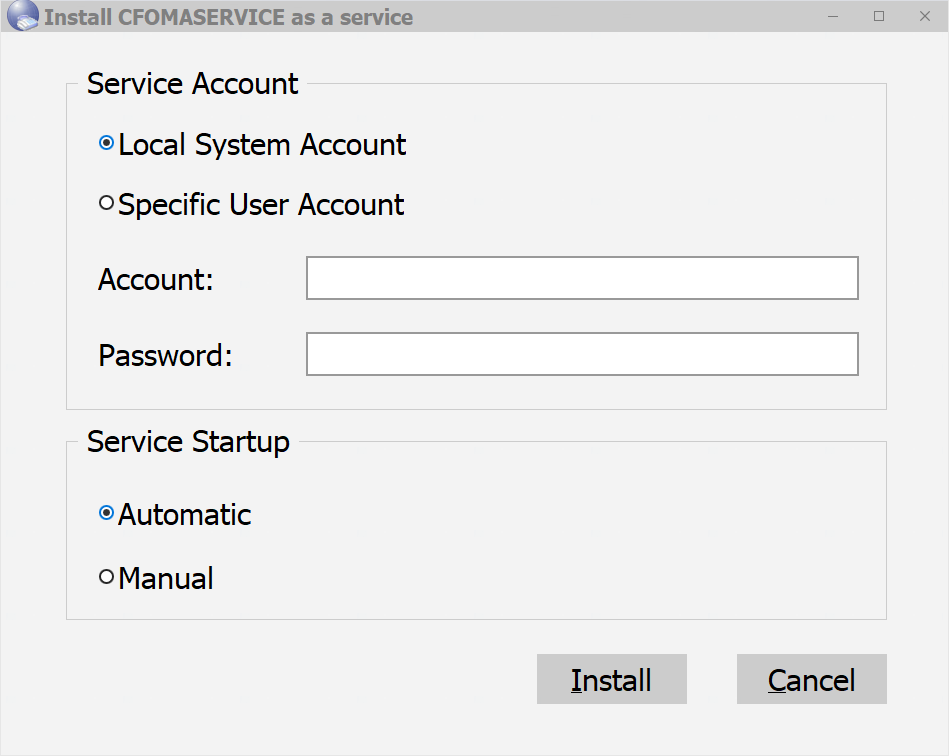
To install CFOMASERVICE as a service for the first time, run OMACHECK elevated and click Install in the Service Mode box.

The account chosen must have access to the COPIA share and any files that are to be monitored. Note also that any command file run when CFOMASERVICE triggers will be run in the specified account.
Starting the Service
When the Service is installed and ready for use, the OMACHECK start button changes to read Start Service instead of Start Monitoring, and when you click this button OMACHECK will terminate, leaving the service running.
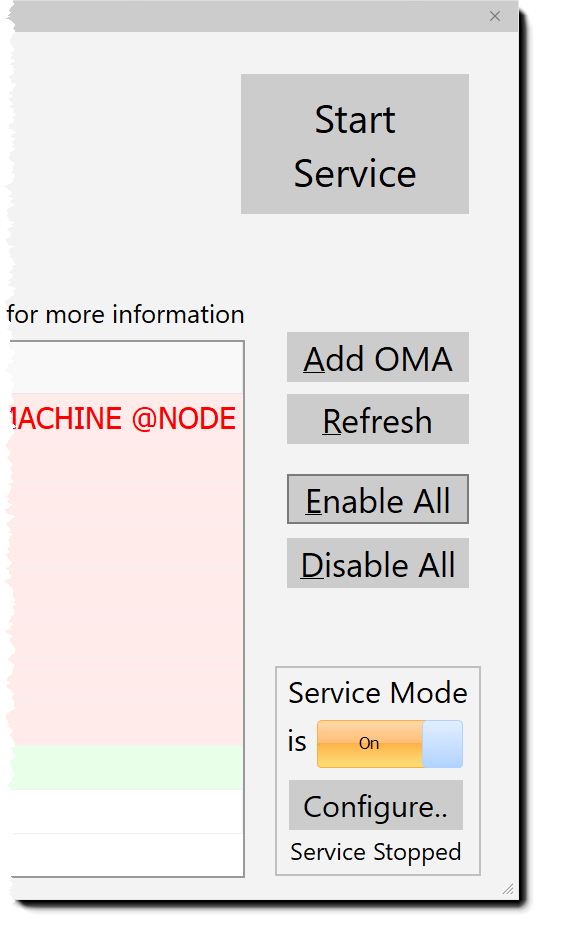
If you restart OMACHECK to make changes to the scan settings, the button to start monitoring will read Restart Service. The service must be restarted after making changes.
Use the Configure button to stop the service if required, or to uninstall the service. To change the login credentials, we recommend that you should uninstall and reinstall the service from the dialog illustrated above.
CFOMASERVICE can also be installed and uninstalled with /install and /uninstall command-line parameters, and can be started and stopped with the usual NET START and NET STOP commands.
Trace Files
If CFOMASERVICE is enabled in FFTRACE under File/Applications, it will write a CFOMASERVICE_mname.FTx trace file, where mname is the name of the machine on which the service is running. It may also write a number of status and error messages to the Windows event log. The location of the trace file is as specified by the FFTRC environment variable, or the FAXFACTS folder if FFTRC is not supplied. As with other CopiaFacts service applications, FFTRACE does not need to be left running to capture the trace output.
Testing CFOMASERVICE
If you need to test that CFOMASERVICE successfully reboots a node, you need to kill COPIAFACTS using the red X button or task manager; when doing a normal shutdown, rebooting is suppressed. And if COPIAFACTS is running as a service, you also need to stop the CFESERVICE application to prevent it attempting to restart COPIAFACTS. Then wait for the configured delay time to check that a reboot is triggered, and if specified, a notification is sent.
