Installation and Configuration Notes
You will have been provided with a Cloudli demo key by Copia Sales, or have obtained a demo key independently. Before you start, please check your machine and network connectivity using the Cloudli SIP Validator.
Please go to the following web address and copy an paste the demo key in the field https://tr.us.cloudli.com/srv/exec?cmd=promoForm
The steps needed at that web page are as follows:
•Answer the questions and pick a telephone number. If this is an outbound only system, pick a number in MA Boston area code 617.
•When you have completed the forms you will get an email with your web login password and a Activation code.
Log in at www.Cloudli.com and set your web password. You should now have a phone number, account number, activation code and web password. Activate the account and you will have to enter information for the 911 account for this number. Please set the info so if Fire and Police get a 911 call they know that the number is computer controlled and you are the contact to fix the call being created by the system (should not happen).
BladeWare Configuration for Cloudli
Once you have completed the activation screens you will be able to run "OTFCONFIG.exe WB". The WB selects the configuration 'wizard' for Cloudli. For details, see the OTFCONFIG topic. The following steps are needed in OTFCONFIG:
•Enter the 11 digit phone number and the sip password as displayed
•Right Click the SIP Address and select the machine's IP
•Right Click the Media Address and select the machine's IP
•Right Click the External IP and select the public IP for this machine
•Press update Profile. you should get a positive message.
You can now visit the faxfacts.cfg, testreg.cmd, testsend.cmd, and testrecv.cmd tabs and Save each one. On the testreg.cmd tab you can save and test. If TESTREG shows an error 404, this indicates that your account number is not a valid telephone number. An error 407 indicates that the account/phone number is valid but the password is not correct: note that changing the configuration settings may alter the password. If the test is not successful for another reason please contact Cloudli support (877-258-8647,514-201-6550) and they will be able to work with you.
The Cloudli configuration also requires the variable OTF_USE_SIPTO to be set in FAXFACTS.CFG for DID/DNIS support. The OFTCONFIG wizard for Cloudli adds this variable.
If you wish to set a ANI (caller ID) for outbound Cloudli calls which is different from your account telephone number, you will need to contact Cloudli support (at the numbers above) to request this option to be set on your account. They will send you a form to be completed and returned which confirms that you accept their conditions for this option.
Once registration to Cloudli is successful you should be ready to use CopiaFacts FoIP.
You should be aware that Cloudli has a connection time limit of six hours. This would limit a typical fax transmission to around 500 pages.
BladeWare, SR140, and XCAPI Configuration for Cloudli
See the sample configuration screen shots in the Bladeware, SR140 or XCAPI main topics.
Your Cloudli account will show you the basic SIP settings:
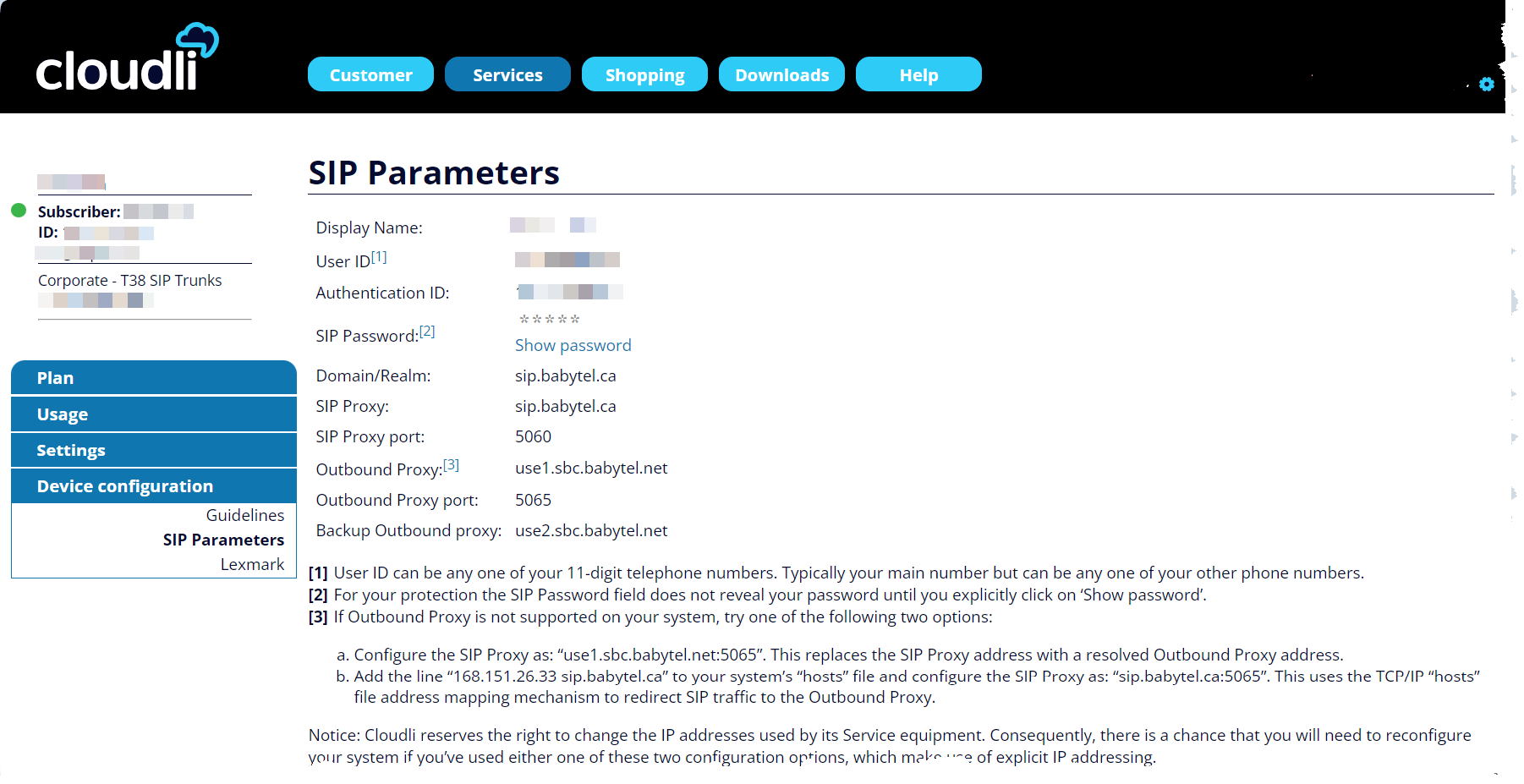

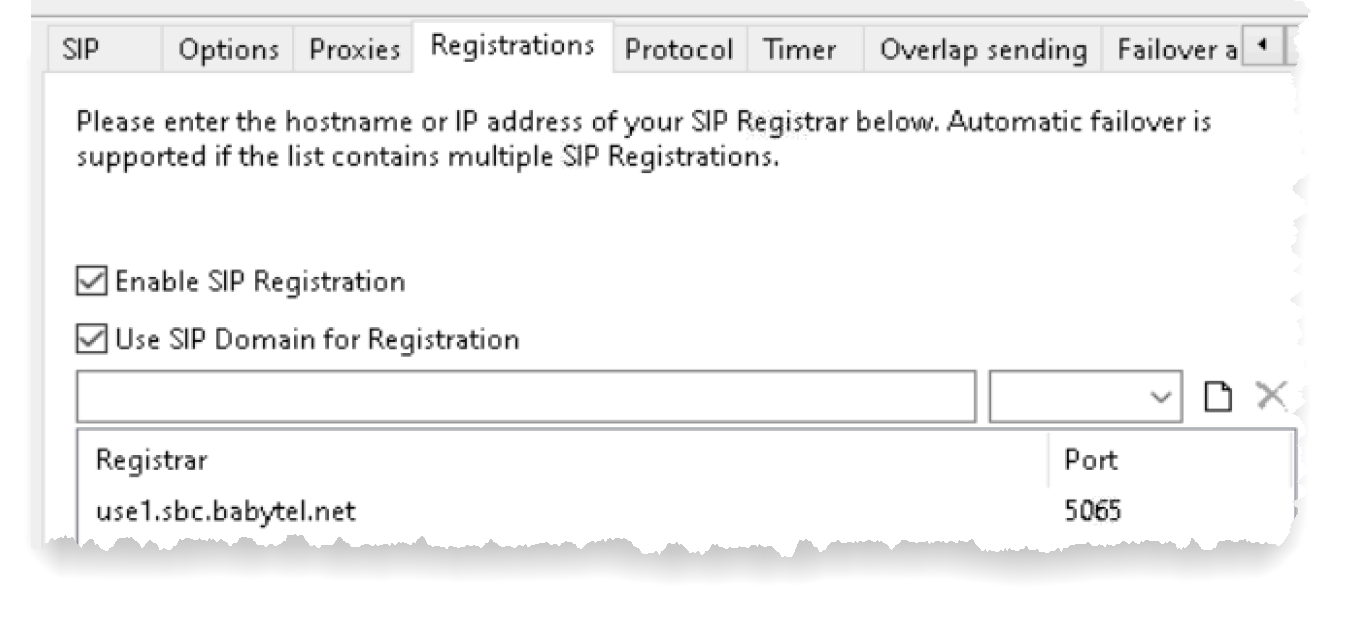
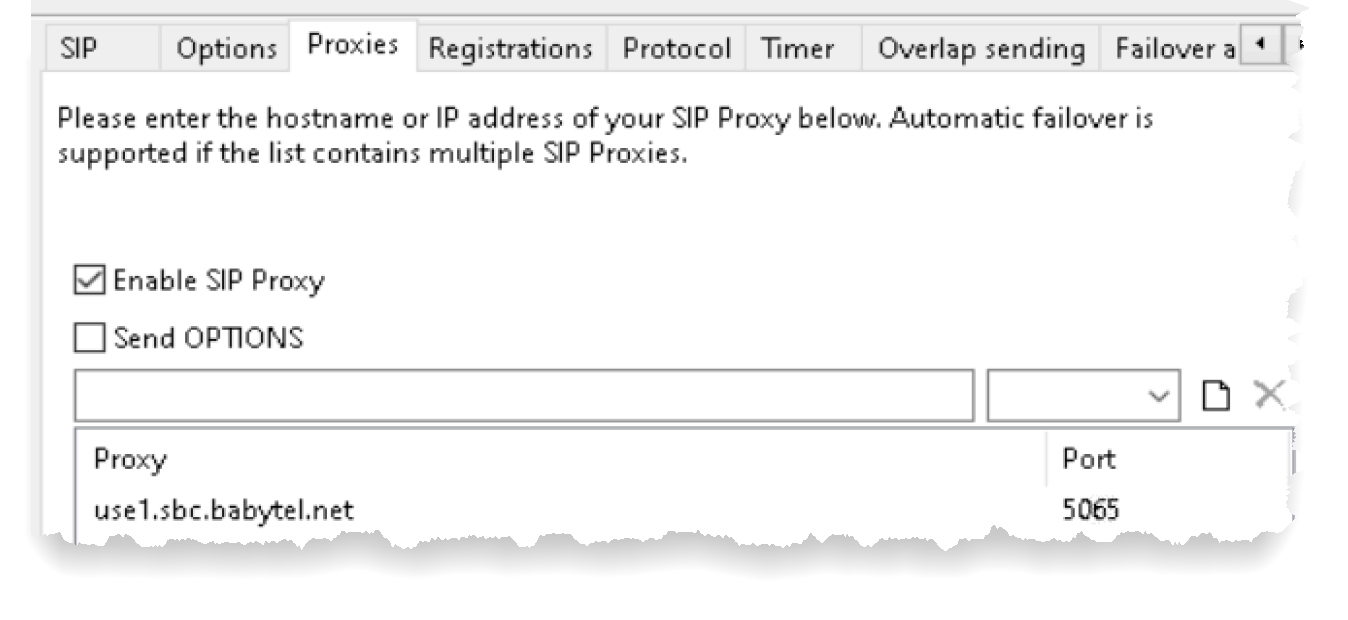
| Note that Cloudli will usually supply two Outbound Proxy domain names: if so, you can optionally enter both of them (in the same order for BOTH the Registration AND the Proxy) to provide automatic fallback if the first specified of of the Cloudli SBCs should fail. However if you do this there remains the possibility that there will be an outage of up to 60s (the usual re-registration interval) depending on at what point the failure occurs between registrations. |
If you will be using Cloudli CryptAgent, see the separate subtopics for BladeWare and XCAPI CryptAgent installation.
If you wish to set a ANI (caller ID) for outbound Cloudli calls which is different from your account telephone number, you will need to contact Cloudli support (at the numbers above) to request this option to be set on your account. They will send you a form to be completed and returned which confirms that you accept their conditions for this option.
Once registration to Cloudli is successful you should be ready to use CopiaFacts FoIP. If you discover registration failures, see the note about DNS configuration below.
You should be aware that Cloudli has a connection time limit of six hours. This would limit a typical fax transmission to around 500 pages.
Frequently Asked Questions
Why might XCAPI report "destination out of order"
We have received a customer report that this outcome can be caused when registration has failed because a DNS lookup in a local DNS server was unsuccessful. It was fixed by adding a public DNS server such as 1.1.1.1 or 8.8.8.8 in Windows DNS settings for the machine.
Can I use Cloudli with CopiaFacts from behind my firewall?
Yes. However, for some firewalls you may need to make a minor adjustment to avoid a rare situation where incoming calls can be blocked by your firewall. If unsure of how to make the recommended changes below, refer to the firewall help or contact your firewall provider for assistance.
| Consistent NAT: | Firewalls that do no not use a Consistent NAT can block incoming calls. In this situation the firewall keeps changing the public IP port used to communicate with Cloudli. If a call arrives at that moment, before Cloudli is notified of the new IP port assigned by the firewall, then that call will not reach the CopiaFacts server. To avoid this, change your firewall setting to enable Consistent NAT. |
| SIP-aware firewalls: | SIP-aware firewalls can prevent calls from reaching the CopiaFacts server. If this is the situation, disable the SIP awareness option on the firewall. |
| Strict firewalls: | In the case of very strict firewalls, such as the ones allowing traffic only on limited well-known IP ports, your calls may be blocked. Modify rules to allow UDP packets from and to natX.Cloudli.ca, and to be redirected to the CopiaFacts server for incoming packets. |
| CryptAgent: | If you are using CryptAgent, you will need to relax strict constraints to allow the SIPCryptAgent to communicate with Cloudli. The settings below supersede those currently in the PDF documentation in the CryptAgent download. |
1.Allow TCP from your server where SIPCryptAgent is running to the primary Cloudli secure Session Border Controller (SBC) – IP address 198.38.7.35 / TCP port 6443
2.Allow TCP to the secondary Cloudli SBC – IP address 198.38.7.34 / TCP port 5443.
3.Allow UDP to both the primary and secondary SBCs – any UDP port.
Firewall (deeper) considerations
In most cases you can use your CopiaFacts server with Cloudli whether it is placed in a public domain or privately behind a firewall.
Where a firewall is in place the overall quality of service should not be affected provided the firewall can handle the extra traffic without degrading throughput and introducing significant latency. The other important factor is that the Network Address Translation (NAT) functionality of the firewall must use a Consistent NAT behavior model.
With Consistent NAT outbound UDP traffic is consistently assign the same remapped public IP address and public UDP port pair to each internal private IP address and private UDP port pair.
Without Consistent NAT, the remapped port would change with every REGISTER message the CopiaFacts server sends to Cloudli, providing no consistency, and no predictability as to where Cloudli should send an INVITE for a new incoming call.
Unless Consistent NAT is used, a problem may happen where a port change takes place and a call happens at that moment, before Cloudli is notified of the new port number. In this situation, the call will not get to the CopiaFacts server because Cloudli will have sent the INVITE to the wrong port and the firewall will simply ignore it.
To ensure this problem does not happen, change the firewall setting to enable Consistent NAT. If unsure, check with your firewall provider for information on how to accomplish this.
For strict firewall, you will need your firewall administrator to adjust the configuration. See the firewall configuration example below, where the CopiaFacts server is the "customer's device":
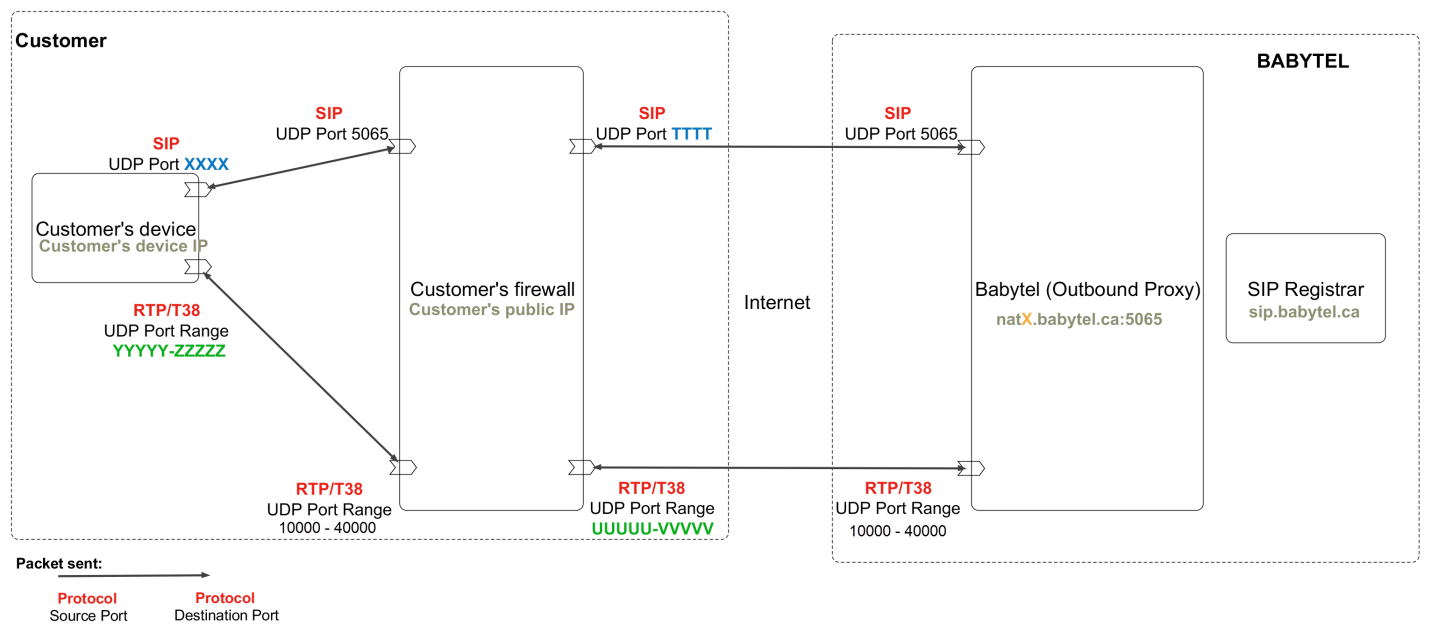
In the above example SIP ports XXXX and port TTTT will be 5060 in most cases. Also RTP ports range YYYYY-ZZZZZ will be equivalent to port range UUUUU-VVVVV, although ports used are dependent on the CopiaFacts server and firewall configuration.
In natX.Cloudli.ca, X should have the value provided with your account.
Source |
Source Ports |
Destination |
Destination Ports |
Protocol |
Direction |
Action |
|---|---|---|---|---|---|---|
CopiaFacts node IP address |
XXXX (device / configuration dependent, often 5060) |
natX.Cloudli.ca |
5065 |
SIP / UDP |
Inside to Outside |
Allow |
CopiaFacts node IP address |
YYYYY-ZZZZZ (CopiaFacts / configuration dependent) |
natX.Cloudli.ca |
10000 - 40000 |
(RTP/T.38) / UDP |
Inside to Outside |
Allow |
natX.Cloudli.ca |
5065 |
CopiaFacts public IP address |
TTTT (CopiaFacts /configuration dependent, often 5060) |
SIP / UDP |
Outside to Inside |
Allow |
natX.Cloudli.ca |
10000 - 40000 |
CopiaFacts public IP address |
UUUUU-VVVVV (firewall / configuration dependent, often equal to YYYYY-ZZZZZ) |
(RTP/T.38) / UDP |
Outside to Inside |
Allow |
