SR140 Installation
For a new install, install the Brooktrout software using the appropriate IFFBOSTONxx.EXE installer (which will run BOSTON.MSI). If you already have an earlier Boston release installed, uninstall it first, and then reboot.
After installation you can run the Brooktrout CONFIGTOOL program. Select Advanced Mode on the first screen. This example is for Cloudli:
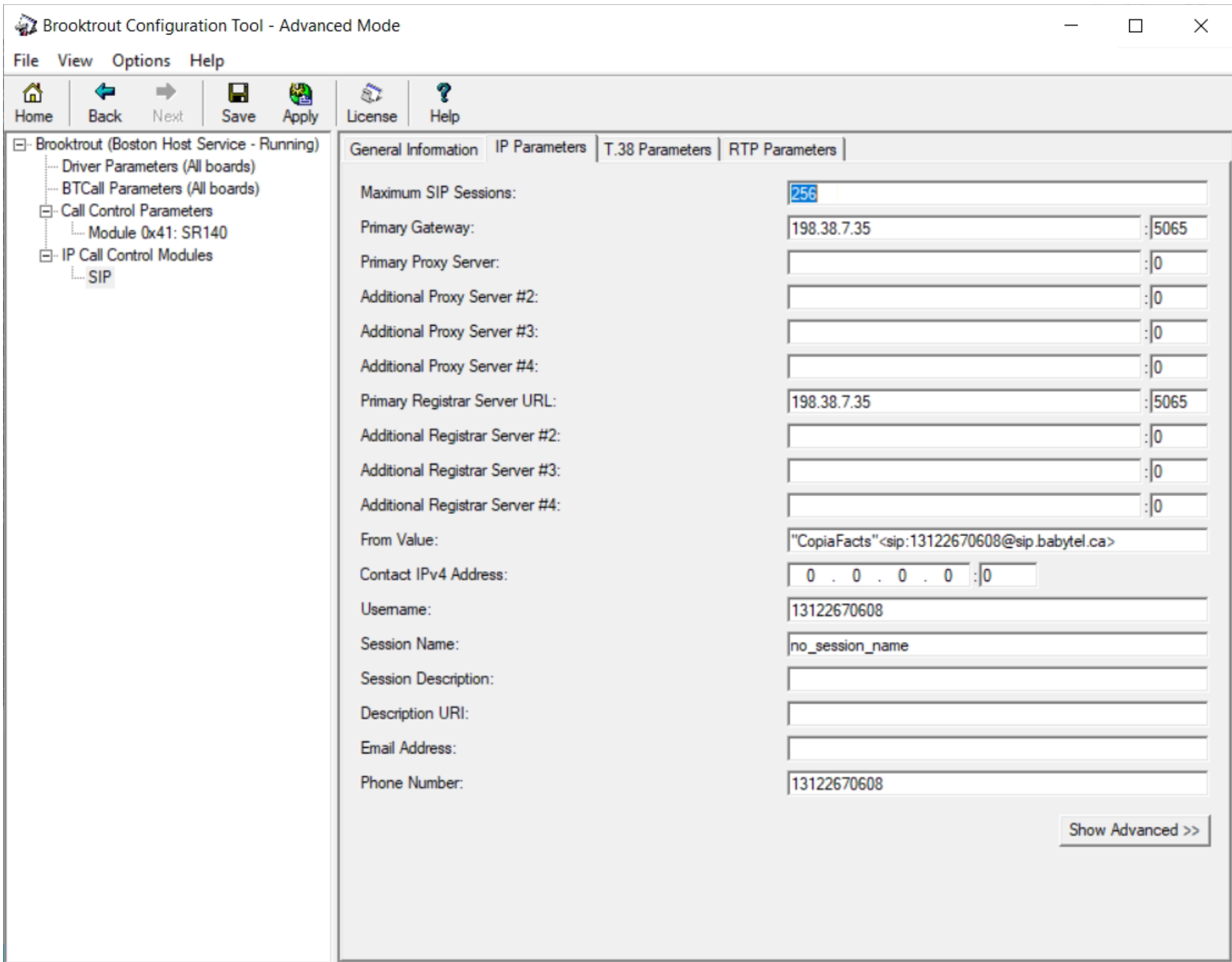
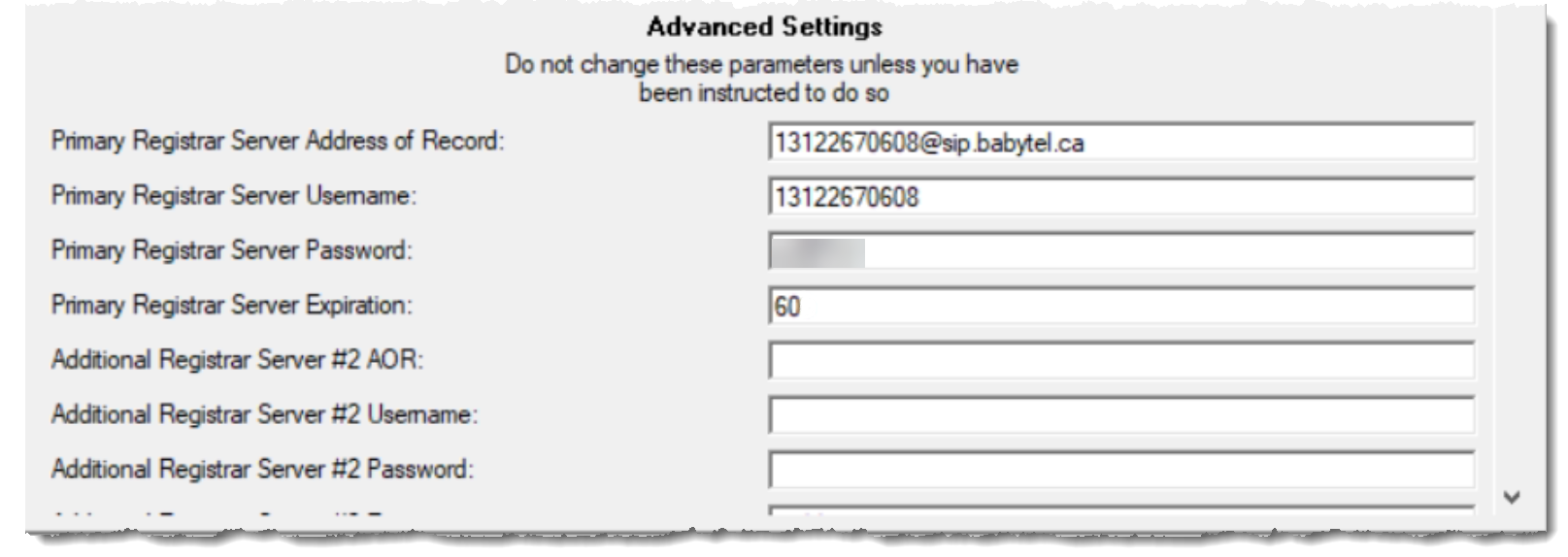
You may need also to edit the advanced settings; for Cloudli the reduced registration expiration value is essential:
Next, select the T.38 parameters:

Finally, check the RTP parameters:

Make sure that the 'Boston Host Service' is set to start automatically, either in the Windows Services manager or from Options/Preferences in CONFIGTOOL
BTCALL.CFG
We strongly recommend adding or editing a max_timeout parameter in the Brooktrout configuration file BTCALL.CFG. This value should cause any Brooktrout API call to return after the specified period. Values under 1000 are interpreted as seconds; values of 1000 or more as milliseconds. You need to choose a value large enough for the longest and slowest fax you expect to send or receive, for example 600 for ten minutes. The default value of zero implies 'no limit' and can result in a stuck channel. You should also make max_pagelist large enough for the maximum number of pages you expect to send or receive. If you leave it at the default of 30, faxes will page counts higher than this will be reported as 30-page faxes.
To find the location of BTCALL.CFG, (re-)start COPIAFACTS with 'Debug Configuration and Startup' set. This will record the full pathname of this file in the trace.
Debugging
The Brooktrout debugging is enabled by means of the Brooktrout CONFIGTOOL program, on the BTCall Parameters page. You can also set the debug filename on this screen. The CopiaFacts 'Debug Low-Level Voice/Fax' option does not embed any Brooktrout debug lines in the CopiaFacts trace as is the case with some other board interfaces.
Dialstring format
The SR140 API requires numbers to be passed as number@sipip:port. This is set automatically, after phone mask and phone account processing. However If a dial string containing @ has been set in phone account processing, it is used unchanged.
