By its nature the conversion of multiple document formats for faxing involves setting up a number of separate tasks. The following checklist is intended to assist with provisioning a new installation which requires document conversion capability:
•Does your CopiaFacts license cover Document Converter? All current CopiaFacts licenses include this feature, and checkbox should be always checked in the rightmost column on the CFHWL license page The use of multiple Document Converter nodes may require additional license settings, which will be advised by Copia.
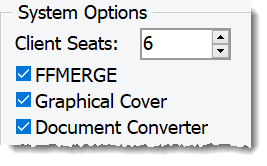
•Has Document Converter been installed? There is a checkbox for this on the initial task list in CopiaServerInstall91xxxx.exe.
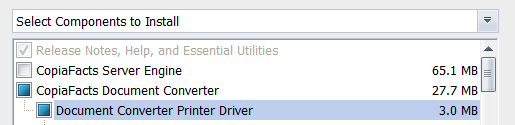
•Has the Document Converter Printer been installed, if you have decided to use this option? This is the checkbox below the Document Converter Checkbox on the initial task list in CopiaServerInstall91xxxx.exe. Note that the default is now not to use printer drivers. Unless you set convert options to use the print drivers, the Document Converter Printer is no longer required.
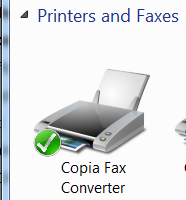
•Does "Copia Fax Converter" appear in the Windows Devices and Printers display, if you have decided to use this option? If not, there may have been a problem with installing: the best advice is to reboot and then reinstall the printer immediately after startup. It should normally be set as the default printer. The Document Converter Printer is no longer required unless you have convert options set which require it.
•Is there a $convert_types command in FAXFACTS.CFG? This is normally inserted by SERCONF (screenshot below) for a new install, but can also be set from the FFEXTERN setup dialog for Document Converter. It should show all the document types you wish to, and have the capability to convert. This command causes the COPIAFACTS engine to push an FS file specifying a convertible document to the PREPROC folder for pre-processing by the Document Converter.

•Are the necessary Office and other applications installed? You need to install Microsoft Office to convert Word, Excel and Powerpoint documents, unless you use the $convert_options keywords for LibreOffice, in which case you need LibreOffice installed. You will require Acrobat for PDFs if you use the printer drivers. For a full list of supported formats, see Supported Document Formats.
•Are User Input Prompts Suppressed in Office and Adobe applications? These applications will usually invite you to join their on-line services or save your documents to social media, especially on first use. It essential that you use their settings dialogs to disable all of the pop-ups, because otherwise the Document Converter will stop and wait. Be aware that even when disabled, these pop-ups may restart after an application upgrade.
•Is FFEXTERN running? This program implements the Document Converter, running CVSINGLE to convert each document. You can use STARTCOPIA to ensure that FFEXTERN is always started with Windows, and OMACHECK to ensure that it stays running.
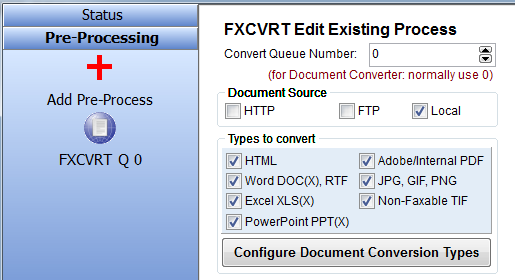
•Does FFEXTERN have an FXCVRT pre-process running? This is required to process items in queue 0. This should normally be provisioned by SERCONF when you select Document Converter defaults as above.
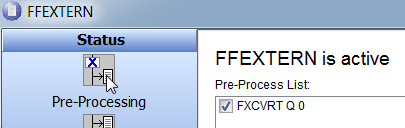
•Does the FXCVRT pre-process have the right document types? All the checkboxes corresponding to formats you need to convert, and for which you have applications available on the machine should be checked. This should normally be provisioned by SERCONF when you select Document Converter defaults as above.
•Are FS files being pushed to PREPROC? If everything is working, you should see FS files appearing in PREPROC while their documents are being converted, and FFEXTERN will then move them back to a TOSEND folder. The $convert_types command controls this.
•Are FS files accumulating in PREPROC? This is a sign that FFEXTERN is not running, or has no FXCVRT pre-process for Q0, or the pre-process is not configured to handle the documents being specified.
•Still not working? Please run FFTRACE alongside FFEXTERN, and in the FFTRACE File/Applications menu, make sure that CVSINGLE, FFCVRT, and FFEXTERN each have their first three checkboxes checked. You can double-click the application name to toggle this setting. A trace file will be created with the name of the node and an FTx extension (x is a day-of-week number, Sunday=0), usually in the \COPIA\FAXFACTS folder or in C:\FAXTEMP. Viewing this file on-screen, or opening in TRCVIEW may reveal the problem to you, or if not, please send the file to Copia support.

Please note that if you are using FFBC or Job Administration to generate FS files, the same settings are needed but the processing described may be slightly different: for example an FS file may be launched directly into PREPROC for pre-processing, without the involvement of the COPIAFACTS engine.
