Introduction
CopiaFacts includes comprehensive help (this document). It is supplied in the following formats:
•E-Book Context-Sensitive Help: Pressing F1 or clicking a Help button in most CopiaFacts applications will display context-sensitive help. This is displayed by default by the application CFHELPVIEW loading the e-book in CopiaFactsRef.cfhelp. CFHELPVIEW is a custom version of the free Ewriter Viewer available in the Microsoft Store. CFHELPVIEW currently supports Windows 11, 10, 8, 7, Vista and Windows XP.
•Web Help: On-line help is provided at this link. To view this help you a reasonably current release of browsers such as Edge, Chrome, Firefox or Opera. CopiaFacts web help is no longer tested with Internet Explorer. Web Help can also be displayed on IPad and Android tablets, and is usable on cellphones also. The latest version of the web help can be accessed by clicking the Globe icon on the E-Book Help header panel.
•Ewriter Help: Similar to the E-Book, this documentation for older CopiaFacts versions is supplied in a .Ewriter file which can be viewed by a free eWriter viewer. This format replaces the CHM help and is the only format which can be viewed on old Windows versions back to XP/2003. The Ewriter Viewer and documentation download links can be found here.
•CHM Help: This format is no longer supplied.
•PDF Help: A PDF version of this reference manual is available at http://cdn.copia.com/files9/DOC/COPIAFACTS91.pdf. The file is in printable format, but contains over 2400 pages. It is not updated every build.
Configuring Edge / Internet Explorer for CopiaFacts Help
You will require Javascript ("Active Scripting") enabled, Before changing this setting on a server operating system you will need to ensure that Internet Explorer Enhanced Security Configuration (IE ISC) is disabled in the Security section of the Server Manager.
This change to IE settings is required both for viewing on-line help from the Copia web site. If you do not enable Javascript the help panels will not display correctly. To make these settings in Edge:
•Open Microsoft Edge.
•Click the three horizontal dots (menu icon) (usually located in the upper-right corner).
•From the menu, select Settings.
•In the left-hand sidebar, choose Cookies and site permissions.
•Look for the JavaScript section.
•Toggle the JavaScript switch to the On position.
It may also be necessary to add 127.0.0.1 (the current machine) as a "Trusted Site" to view the context help E-book. This can be done by going to Settings / Internet Options / Security / Trusted Sites, and adding this IP address in the Add box. To enter an IP address on its own, you also need to uncheck the checkbox which causes HTTPS to be required.
 | Sometimes, after a major revision to the CopiaFacts on-line help, you may need to clear your browser cache if some of the screen styles appear inconsistently. |
The On-line Help now uses the left-hand panel for Contents, "A-Z Keyword Index" and Full-Text Search on three separate tabs; the size of the left panel can be adjusted by dragging the left/right arrow icon. Clicking on this icon hides or shows the left panel.
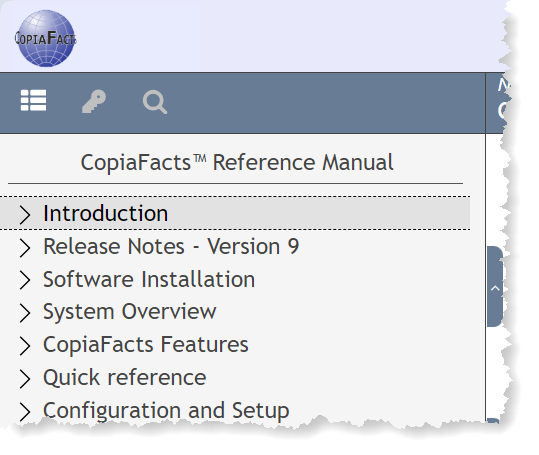
The middle tab above displays an A-Z keyword index of, and the right tab opens a full-text search dialog.
| Always try the A-Z keyword index first because all the main CopiaFacts features appear there and can be found more quickly. Commands appear at the top of the list, each starting with $, and all program names are also head entries in the this index. |
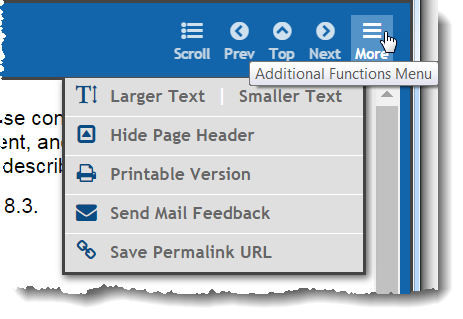
The printing, feedback, and permalink/history additional functions have been moved to the hamburger icon at the top right.:
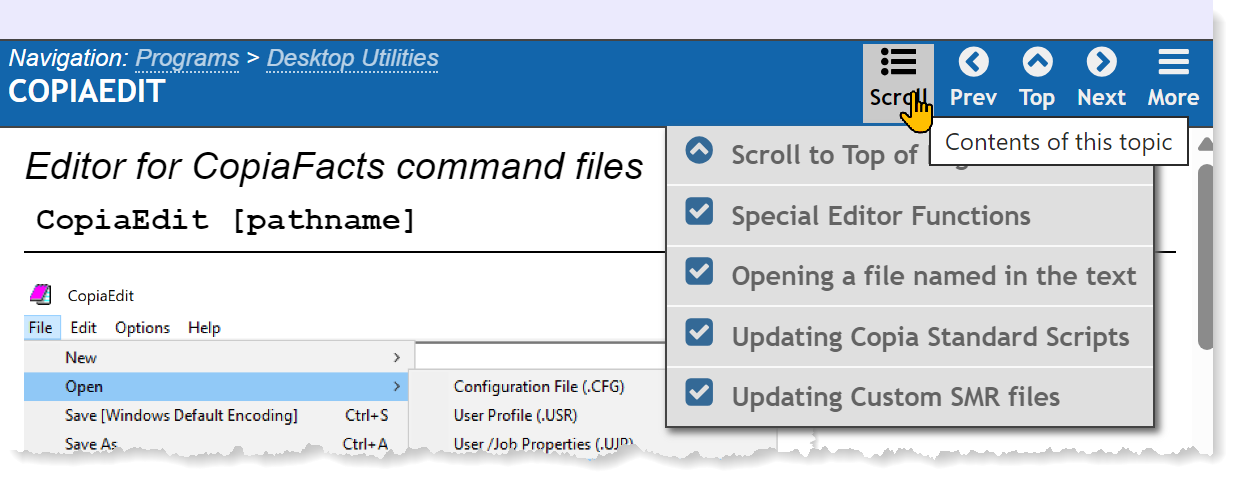
A "Scroll" button only appears when a topic has multiple sections which are not visible on the first page of the topic; it then shows a menu of all the sections in the topic: Press the button, then select the section you wish to scroll to:
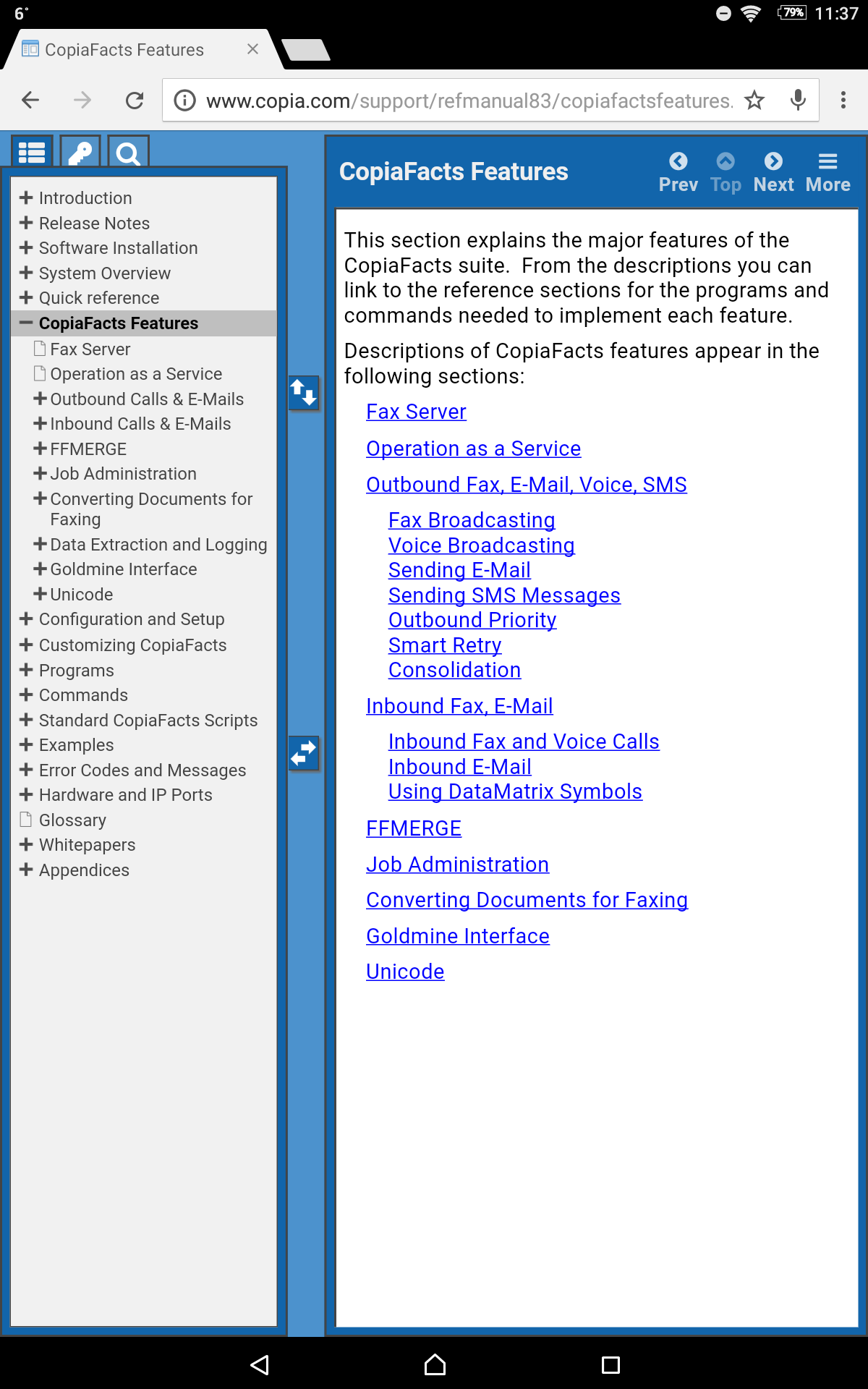
The on-line help supports tablet and phone browsers, where the appearance will automatically change to accommodate different screen size and orientation.
The CopiaFacts E-Book Help File is displayed automatically, in context, from most CopiaFacts applications when the F1 key is pressed or a Help button is clicked.
In the latest E-book version of the help file, the documentation is presented with similar format and styling as the web help.
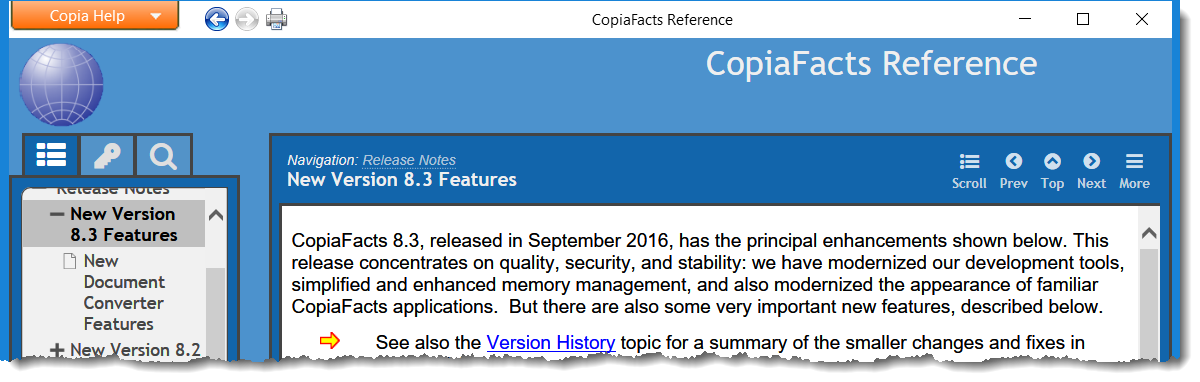
For the functions of the icons, please see the Web Help section above.
In the E-book, you can increase and decrease the font size using control-mousewheel. This works better than the menu settings on high-resolution screens.
Please do not hesitate to send feedback about anything which you find unclear. There is a feedback button in the More menu in the Web help and E-Book pages. Sending the feedback requires a mail client installed on your machine.
