If you have ordered a personal signing certificate and it has been delivered and installed into Internet Explorer, you can save it for use in CopiaFacts as follows:
1. Use the Tools / Internet Options / Content / Certificates menu to access the certificate store:
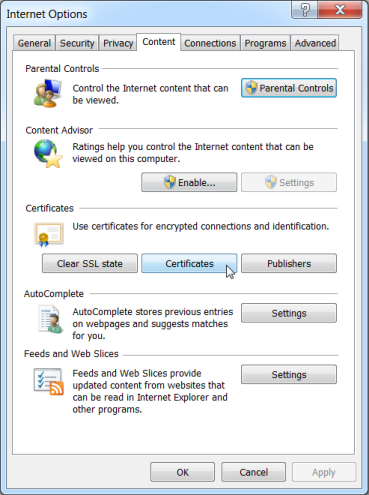
Click on Certificates to access the certificate store.
2. Select your own certificate under Personal:
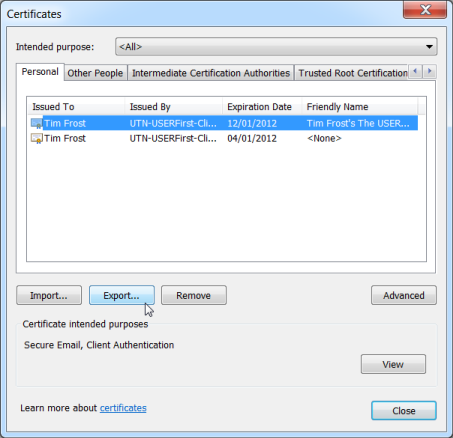
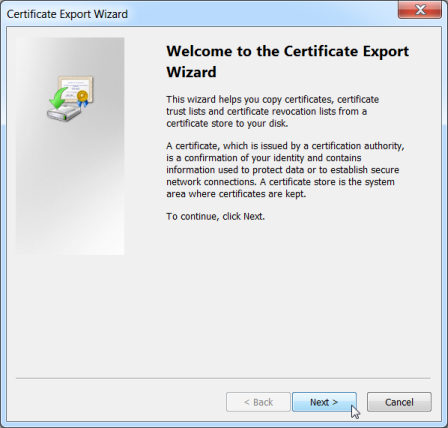
Click Export, then click Next on the first wizard page:
3. Specify that the private key is to be exported:
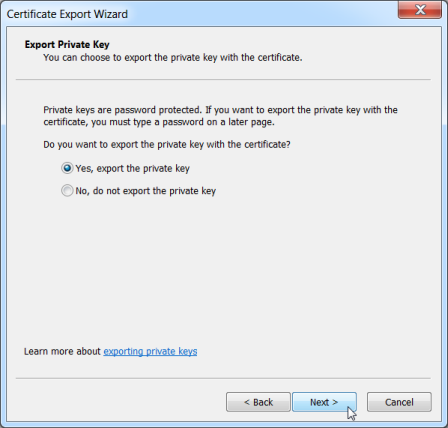
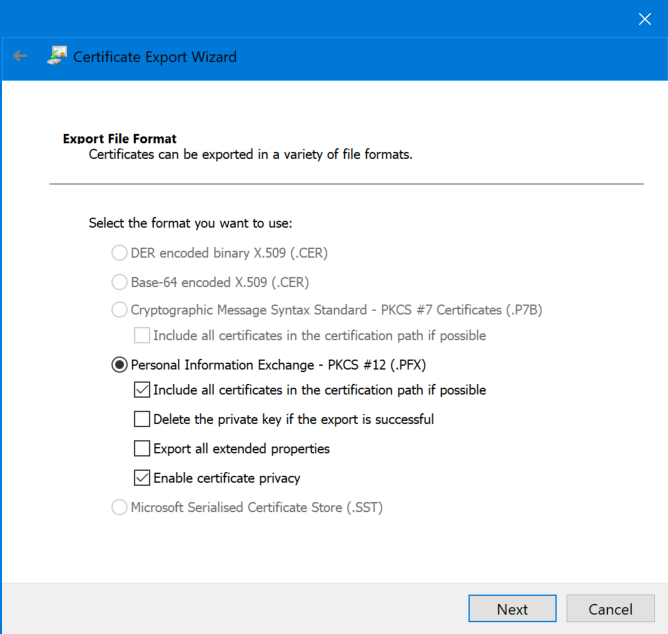
Click Next, then select .PFX format (the only one enabled when the private key has been included). The Windows 10 version of this dialog has an extra checkbox, 'Enable certificate privacy', which causes the public key to be encrypted in the PFX file: if you check this, the public key is still available to verify the message when sent in a signed e-mail.

4. Enter the passphrase to be saved with the certificate:

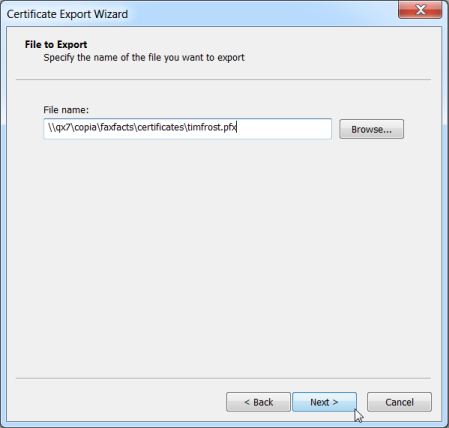
5. Browse to and/or enter a filename to save the certificate:
6. Click Finish to close the wizard:

The certificate is now ready to be used in CopiaFacts to sign outgoing e-mail from you or to decrypt incoming e-mail addressed to you.
