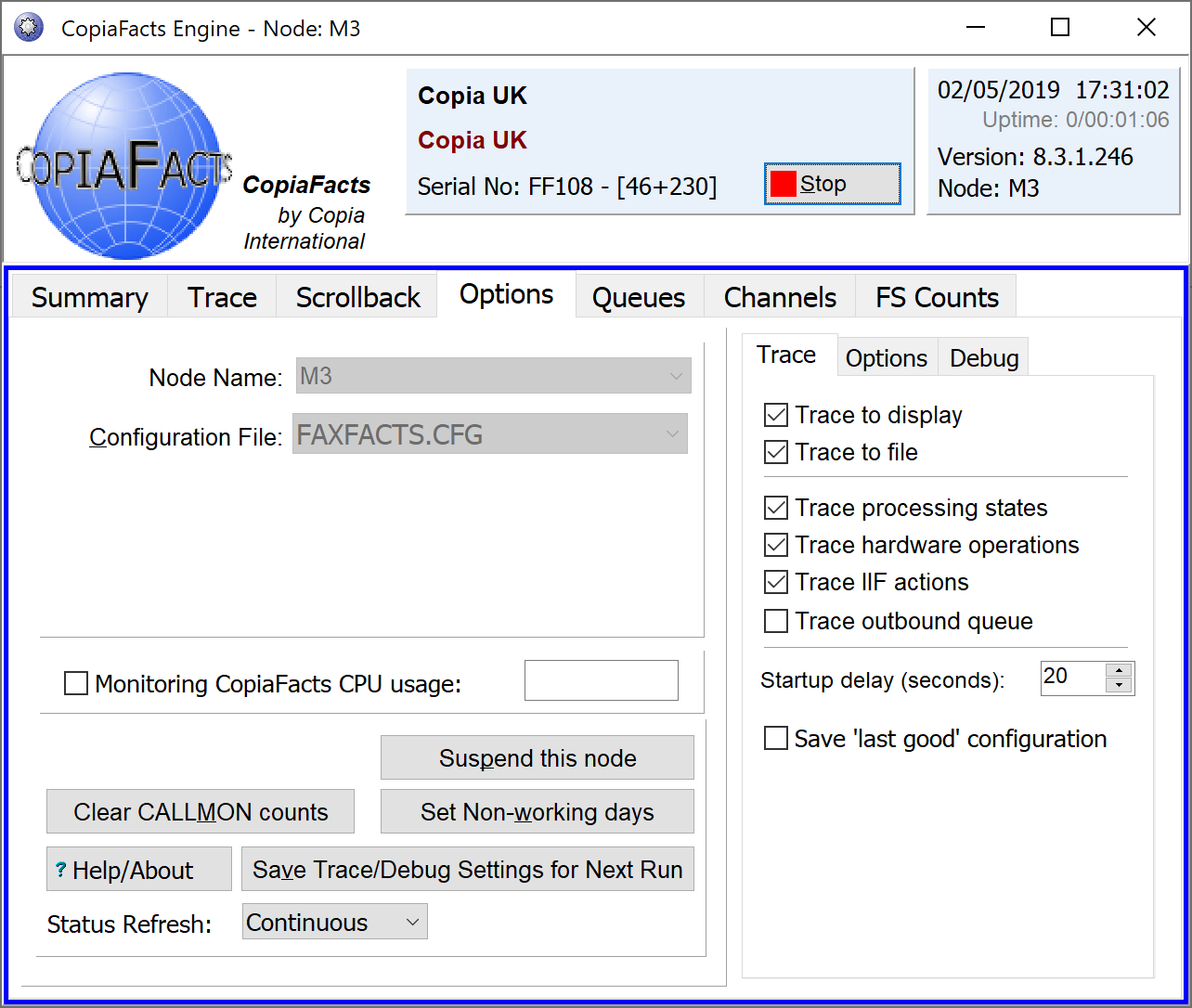
When you start the COPIAFACTS program it initially displays the options page and you have a configurable delay time to start making changes to parameters and options. Normally, you will wish to start the server with the standard options saved from an earlier run. To make changes, select any entry field or option or press the Pause button. Changes will affect only one operation of the program unless you press the "save" button. When you are ready to start the server, press the start button. You can navigate the status screen using standard Windows mouse or keyboard operations. The keystrokes documented in COPIAFACTS Keyboard Functions can be used instead of the mouse.
During initialization processing the CopiaFacts hardware/license file FAXCOUNT.HWL and the configuration file (normally named FAXFACTS.CFG) are located and processed, and the hardware and drivers are checked. If there are any errors an error message is displayed. This message remains on the screen for a pre-set time, after which the CopiaFacts software clears the screen and terminates. It can not be started successfully until all startup errors have been corrected. For a list of error messages and their possible causes please see CopiaFacts Error Messages.
Once the configuration file has been processed COPIAFACTS initializes the fax and voice boards and, depending on the configured channel operations, starts monitoring the phone line for incoming phone calls or starts monitoring the TOSEND directories for outbound requests. The fax channel status is always displayed in the status line of the window.
During operation, you may change the trace and debug options dynamically, but to change the node name you must stop and restart the program. Changes to the trace and debug settings while the program is running are not automatically saved and you must press the long 'save' button to save them for the next session. Changes on the Options sub-page are saved whether or not the 'save' button is used.
The button labeled 'Suspend this node' can be used to disable operations on all channels in the node, as each call finishes on the channel. The two panels at the top change to red to indicate that this has been done. Press the same button again to resume operations. Note that the 'suspend' state is not remembered if you restart the program. Depending on the hardware in use, it may take a minute or two to re-enable acceptance of inbound calls after resuming operations. For BladeWare, inbound calls are still processed while the node is 'suspended', but will be rejected with SIP code 480 (temporarily unavailable).
To stop COPIAFACTS, press the "stop" button. This action starts a "controlled shutdown" which prevents new calls from starting and terminates the program when all channels become idle. A dialog is also displayed to allow you to shut down immediately or to cancel the controlled shutdown. Note that if all channels are already idle when you start the controlled shutdown, you will have ten seconds to cancel it before program termination occurs.
This checkbox enables a display of the CPU percentage utilization, showing a snapshot taken every second from the Windows performance counters (as used in the Task Manager CPU display). When enabled, this display also causes CopiaFacts to shut down automatically if the CPU utilization remains above 98%. This feature is intended principally for users who administer their system remotely who may be unable to control the machine to shut the program down in these circumstances.
The shutdown is triggered when the CPU usage exceeds the limit in more than 20 of the 60 snapshots taken in a single minute. On a trigger, a snapshot of the per-thread CPU usage values is also written to the registry.
When CopiaFacts shuts down it is treated as an 'immediate exit', and an entry is written into the Windows Event log. Calls in progress will be lost, but FS files will be resubmitted using the normal cleanup procedure. You should ensure that the fax-board or port driver services are restarted by your automated restart procedure: in a case where the high CPU usage occurs in the driver, this is usually necessary to clear the problem anyway.
Save 'Last Good' configuration
Checking this checkbox causes a ZIP file to be saved every time the COPIAFACTS program completes startup. The contents are intended to help you recover if a configuration change causes the COPIAFACTS program not to start. The ZIP file is saved in the FAXFACTS\LOG folder and is named nodename_LAST_GOOD.ZIP. It contains the FAXCOUNT.HWL and FAXFACTS.CFG files, the default user profile USR file, and the line and queue schedule files (.lns, .tss, .tsp) for the node.
