Export all CopiaFacts Settings
CFEXPORT
 | CEXPORT and CFIMPORT are scheduled for release in an upcoming build of CopiaFacts version 9. The features described in this topic may change before release. |
This program will collect CopiaFacts configuration settings from the machine it is run on, and from the COPIA share, even if that is located on a different machine. The settings will be exported into a file in the FAXFACTS\SYSTEM folder.
The filename of the exported file is in the following format: serialno_machine_yyyymmdd_hhmm.CFXS. Note that this filename records the Windows machine name, not a CopiaFacts node name.
This file is a ZIP file format but is deliberately named with a non-standard file extension because it will not expand correctly from a normal ZIP utility. The file pathnames are organized in a non-standard way to allow CFIMPORT more flexibility for installation moves. In addition, unlike a standard ZIP file, the file timestamps are held as UTC so that they can be restored unchanged across a change of daylight savings time or time zone.
| | Only use CFIMPORT to extract files from a .CFXS file.The CFEXPORT program creates a file containing CopiaFacts configuration files and Registry settings, which can be used (by CFIMPORT) to recreate your CopiaFacts environment on a new machine, or to restore the configuration on the same machine after loss or damage. |
| Read the main Relocating the COPIA share topic before planning an export/import project. |
The following principal settings will be collected in the settings file:
•Configuration and License files (CFG and HWL), collected from the FAXFACTS base folder.
•COPIACONNECT.INI from the local Appdata folder.
•User Profiles (USR), collected from FAXFACTS and all folders below it.
•Mailbox files (MBX), collected from FAXFACTS\MAIL.
•SMTP Gateway Template files (FST), collected from the GWTemplates and GWRecipientDomains folders.
•FFMERGE Task files (FST), collected from the defined folder for FFMERGE, if licensed.
•FFCLIENT files (UJP, INI, etc.), collected from FAXFACTS\USERJOBS. This collection is suppressed for sites where the Job Administration feature is licensed.
•Job Administration System, Owner and Jobtype properties (UJP), collected from FAXFACTS\USERJOBS, only when the Job Administration feature is licensed. Note that Job Instance UJP files are not collected.
•''Next transaction'' files (NEXTFS, NEXTMCF, NEXTMSG, NEXTCALLNO, NEXTJOB).
•Scripts (IIF, HTM, GIF), collected from FAXFACTS and all folders below it.
•Saved Certificates (CER, DER, PFX, P12), collected from FAXFACTS and all folders below it.
•Custom Voice files (VOX, WAV, XML, etc), only when the system is configured for voice.
•Miscellaneous other files (GCT, GTT, GPT, SMR, TSP, TSS, LNS, INI), collected from FAXFACTS and all folders below it.
•FAXCOUNT.HWL, only for restoring on the same machine and CopiaFacts license. If the CopiaFacts nodename(s) or hard/ware ports have changed, CFHWL must be used to reconfigure after restoring.
•CopiaFacts Administrator Registry Entries (HKLM).
•CopiaFacts User Registry Entries (HKCU).
No current transaction files will be included (FS, MCF, MSG/BAK, Job Instance), and no files which have completed processing: you should make a backup copy of the entire COPIA share and the Gateway saved-messages folders if you need to retain all these files. In addition no configuration details are included for board or port drivers: these will always need to be installed as required when moving an installation.
When exporting the registry content, keys are omitted by default if they contain:
•Window positions and sizes saved on application exit.
•Lists of 'most recently used' (MRU) files.
•Histories of recently recently entered field values.
A checkbox is provided at the foot of the introductory explanation to include the above three categories of registry entry.
| We recommend not enabling this option when you are exporting to transfer to a new environment. It risks some windows appearing outside the screen in your new environment. |
If the COPIA share is on the same machine as the CopiaFacts server programs, rather than on a separate fileserver, CFEXPORT will not record the local pathname to the COPIA share in the exported flle. This will allow you, if you wish, to specify in CFINPORT that the COPIA file server in the new environment is to be on a separate machine. CFIMPORT can also be configured to change local references to these files to UNC pathnames.
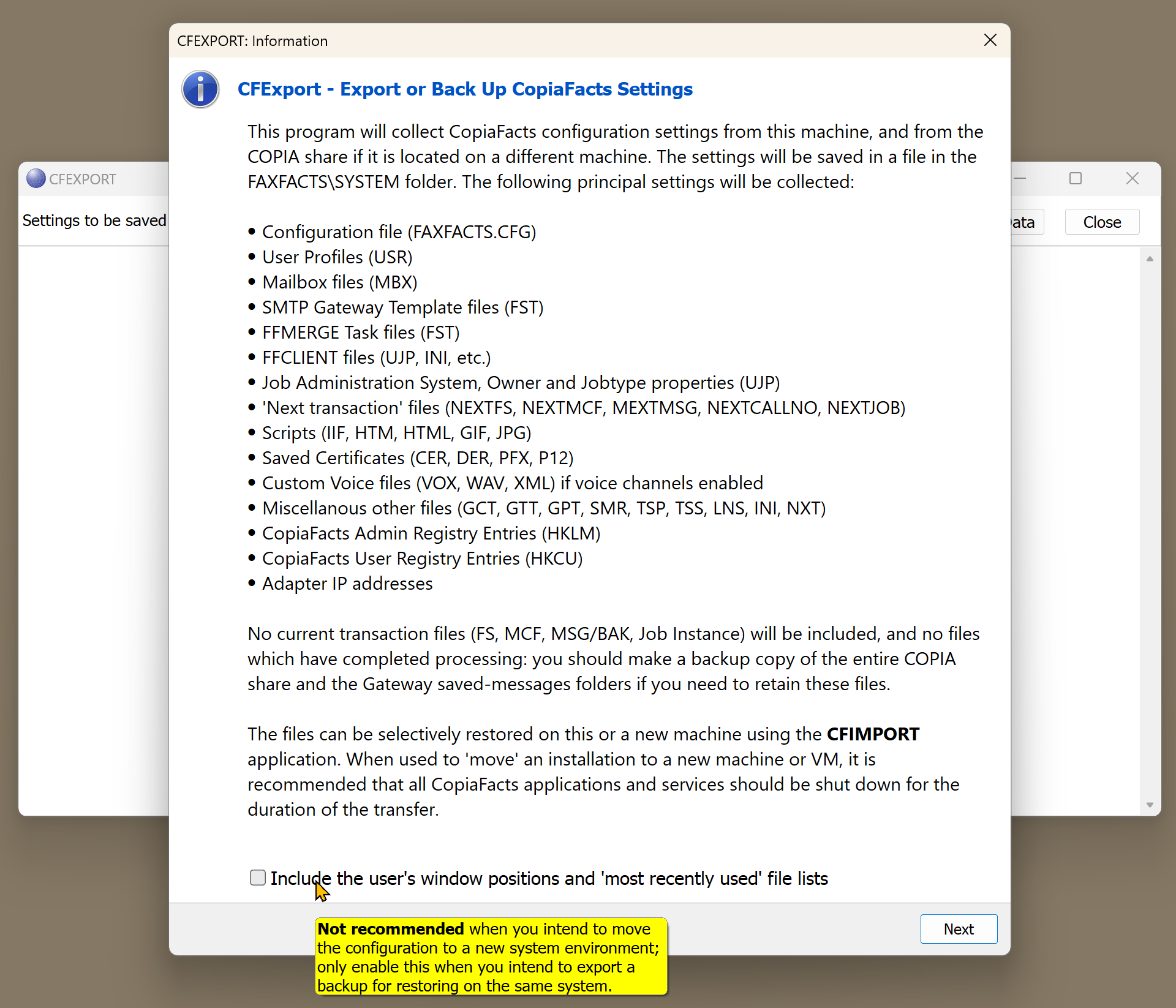
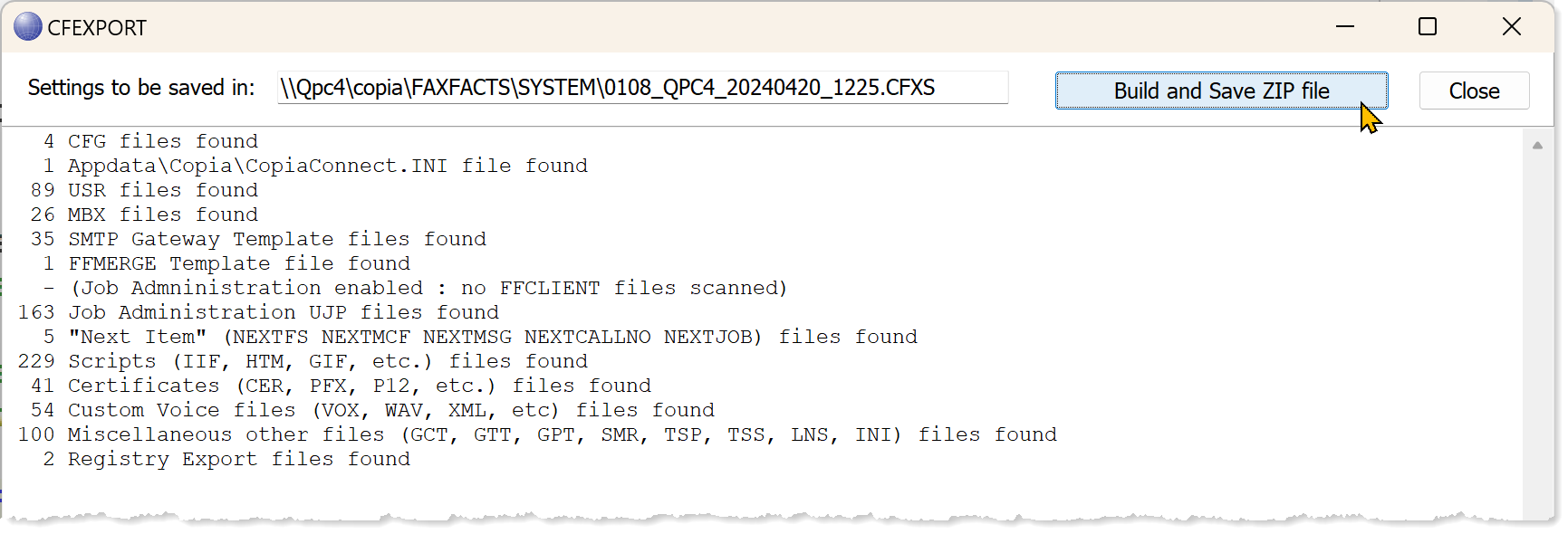
The program runs in interactive mode, displaying first a summary of the above information, then a summary of the file counts found in each category, then finally confirmation of the file build and save. The program is started with a click on the button:

When you have checked the summary of selected files, click to save the .cfxs file:
Logging
FFTRACE can be run with CFEXPORT enabled in the File/Applications menu and will record the summary if CFEXPORT is enabled under File/Applications. Setting low-level debug for CFEXPORT in FFTRACE will also record the addition of each file to the archive.
Processing Sequence
| When used to ''move'' an installation to a new machine or VM, it is recommended that all CopiaFacts applications and services should be shut down for the duration of the transfer. However CFEXPORT will retry the processing of locked files using the specifications in $lock_tries. |
| A CopiaFacts environment will first need to be set up using COPIAINSTALL9 on a new machine before importing the file saved by CFEXPORT, but you should normally do the settings export and import before running the server installer to install CopiaFacts programs on the new machine. |
| This program is compatible with CopiaFacts version 8 and can be used to backup, or export for moving, a version 8.3 CopiaFacts installation. It has not been tested with older CopiaFacts releases. A copy of both CFEXPORT and CFIMPORT can be downloaded from |
| This installer will install CFIMPORT, CFEXPORT, and TRCVIEW executable programs, and the latest help file CopiaFactsRef.cfhelp, into the Program Files (x86)\Copia folder. It will only install FFTRACE (version9) if FFTRACE.exe is not already present. |
CFXS File Content
Do NOT attempt to extracf content from this ZIP-format file with a standard ZIP utility. It will not extract in any useful way.
There are three parts to the file content:
| 1.COPIA share | This folder is named with the machine name on which the COPIA share resides, and contains all the files which need to be exported, maintaining their folder structure under the FAXFACTS folder. |
| The FAXFACTS\SYSTEM folder will also contain two REG files (not retained after export) which will have been extracted from the registry of the machine on which CFEXPORT is running, The file names are: serialnum_machine_yyyymmdd_hhmm_HKCU.REG serialnum_machine_yyyymmdd_hhmm_HKLM.REG |
| 2. Local Files | These folders are below the root folder named machine_LOCAL_x and contain only the local files which need to be exported from drive X on the machine on which CFEXPORT is running. |
| If the COPIA share is on the same machine as is running CFEXPORT, these files will not be exported as local files, because they will already be exported in section 1. This will result in this section of the CFXS file containing only a few files. CFEXPORT does not scan other fixed drives on the local machine. |
| 3. Identity files | Five files in the root of the CFXS file are used to provide information for CFIMPORT, which may run on a machine with different IP addresses and node names attached. The file names all begin with 'EXPORT' and have the following contents: |
| EXPORTID | Contains datestamp. serial number, local machine name, UNC path to COPIA share, and if the COPIA share is local, its local path. |
| EXPORTIP | The IP address(es) of the network adapters on the exporting machine |
| EXPORTNN | The Copia Node names of COPIAFACTS nodes configured in the HWL file |
| EXPORTDN | The Copia Node names of FFEXTERN nodes configured in the HWL file |
| EXPORTGN | The Copia Node names of CFGATEWAY nodes configured in the HWL file |
| Some of the above names will be scanned to find if they are present in the exported command files and registry entries. |
CFIMPORT is not limited to scanning for the exported path names listed above. It will also find other machine names, node names and drive letters in the imported content, and can change them on import to a new CopiaFacts installation. We recommend preparing for import/restore by reading the CFIMPORT documentation, before you start a project to move the settings.
