Follow the steps below to implement Text-to-Speech on your system. Once you have TTS enabled, you will be able to prototype IVR applications much more quickly and easily. You will also find that the current TTS voices are more than adequate for production use in IVR applications.
Enable TTS in your CopiaFacts license
Contact Copia sales to get a full or evaluation license key for TTS.
Download Microsoft Speech Components
The main download link is: https://www.microsoft.com/en-us/download/details.aspx?id=27225. Note that there are two MSI files at that site with the same name: the smaller is 32-bit and the larger is 64-bit:
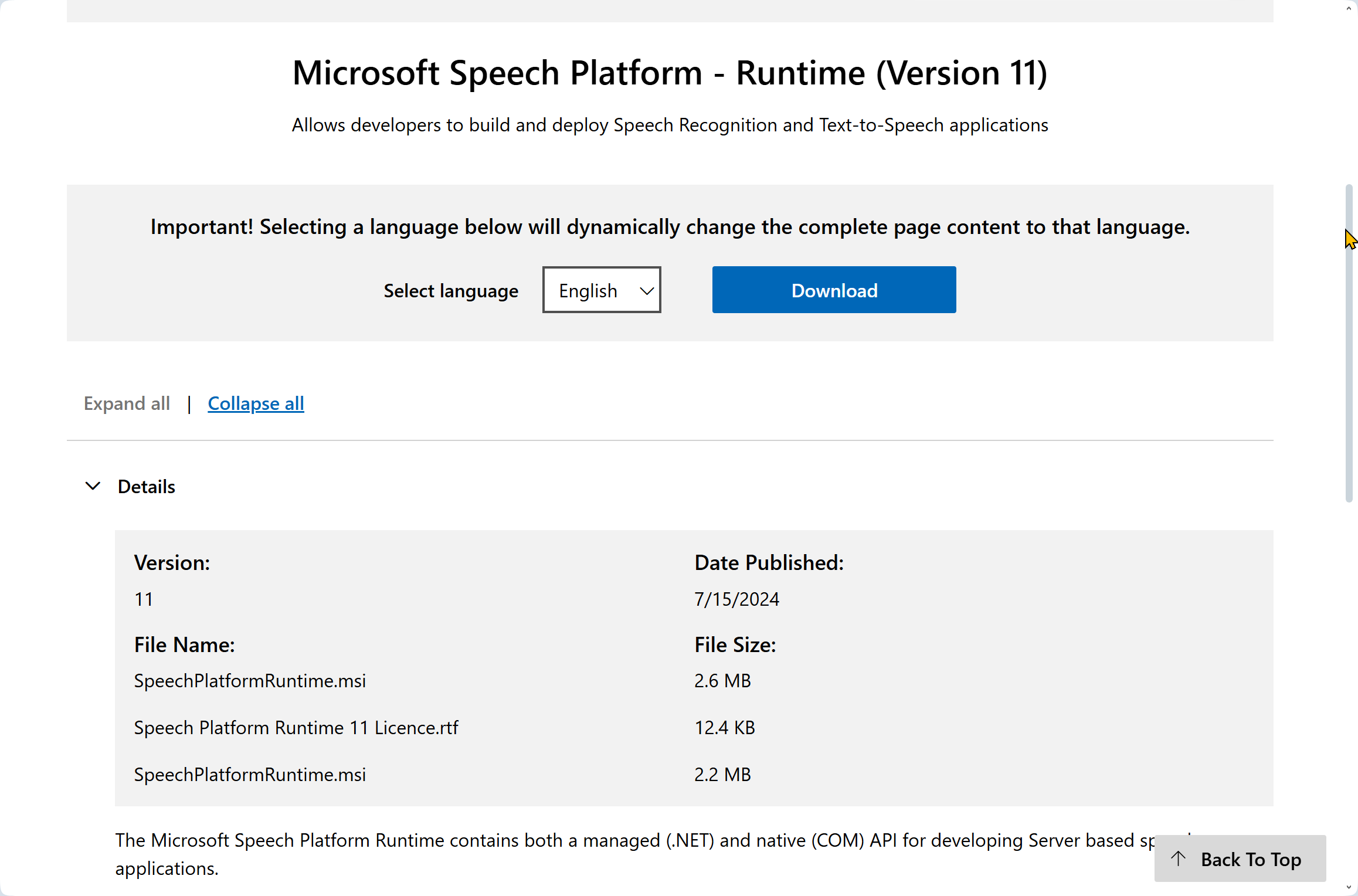
Use the Download link at that page, to choose, download and install the smaller, 32-bit MSI file. If you have a 64-bit OS and need to use TTS with Windows utilities, you can also download and install the 64-bit version; the 32-bit (x86) version will be used by COPIAFACTS (and by CFTEST / FFTESTTS).
You also need a TTS voice file. The download page is: https://www.microsoft.com/en-us/download/details.aspx?id=27224. For USA users, we recommend either: MSSpeech_TTS_en-US_ZiraPro.msi or MSSpeech_TTS_en-US_Helen.msi which you will find some way down the page among the TTS files. You will see many other English and other language files listed. Note that if you choose a non-English voice, it will expect to be passed text in the corresponding language.
Install the Downloaded files.
Edit FAXFACTS.CFG
Add a line to load the TTS DLL:
$tts_dll M1 @PFC\cf9msspeech.dll "en-us"
The name in quotes can be any unique sub-string of the voice name. If you are using "en-us_Helen" you can simply enter "helen" (unless you also have the Spanish "Helena" installed).
Currently only a single voice can be selected for use in each node.
Start COPIAFACTS on the machine, using the nodename specified on the command (M1 in this example). This ensures that the test utility will know the active nodename.
Test the installation using FFTESTTS
Provided your machine has headphones or a speaker connected, you can experiment and listen to text spoken by the TTS system.
Run the FFTESTTS program (included in CFTEST). It should initially show the DLL name from your $tts_dll command:
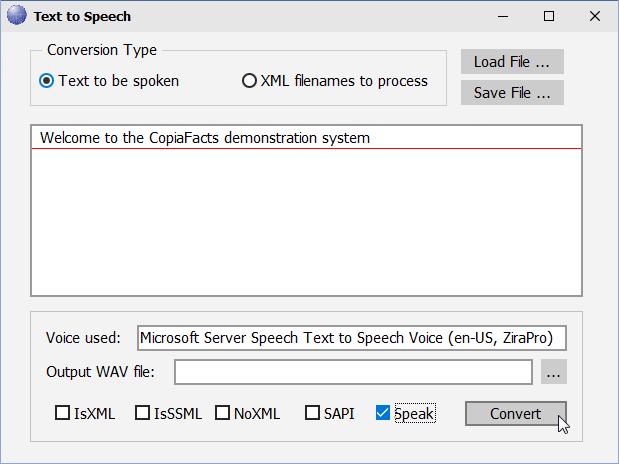
Type some sample text, and check the Speak checkbox, then click Convert. You should hear the phrase you have entered spoken.
Experiment with some other texts. For more information about the test utility, see the FFTESTTS topic.
Create an IVR test infobox
The simplest infobox would be as follows:
; 00000123.IIF
$type voice
$tts_text "This message is spoken using text-to-speech."
$tts_text "You should be able to hear it spoken."
$next_box s:HANG_UP
If you call in and select box 123, you should hear the spoken message.
If you already have $type voice or $type question infoboxes, you can also test replacing the $image_desc command with a $tts_text command.
The OPTOUT sample application has samples of more complex infoboxes, including the use of embedded `varname values to vary the spoken text and the use of SSML to control precisely how the text is spoken. Many applications will not require you to learn SSML, and TTS texts can simply be placed in a file (with $tts_file) or as $tts_text directly in the infobox.
Further Reading
See the main Text-to-Speech topic for details of how to create system-message voice files to match your custom TTS messages, and for a sample of a file to use with a $user_pb_dig command for digit playback.
The main Microsoft links page for Speech Services is at http://msdn.microsoft.com/en-us/library/hh361572.aspx, but this contains mainly technical links for programmers. There is however a section on how to construct an XML file for use with TTS, at http://msdn.microsoft.com/en-us/library/hh362831.aspx.
To use basic voice XML features (SSML) a more useful reference is at http://www.w3.org/TR/speech-synthesis. We strongly recommend using FFTESTTS to experiment with SSML before you write the infoboxes for your application. You should be aware that SSML syntax errors will often result in no speech output at all.
If you require further guidance please contact Copia Support.
