FS File Performance Measurement
TESTFS
TESTFS is a utility (included in CFTEST) provided to measure network performance for tasks similar to those needed for CopiaFacts TOSEND queues. It can be run to test either local drive or network performance.
 | Do not choose a live TOSENDx folder to test in. We recommend that you always create a special folder for TESTFS and never use any existing CopiaFacts folder. |
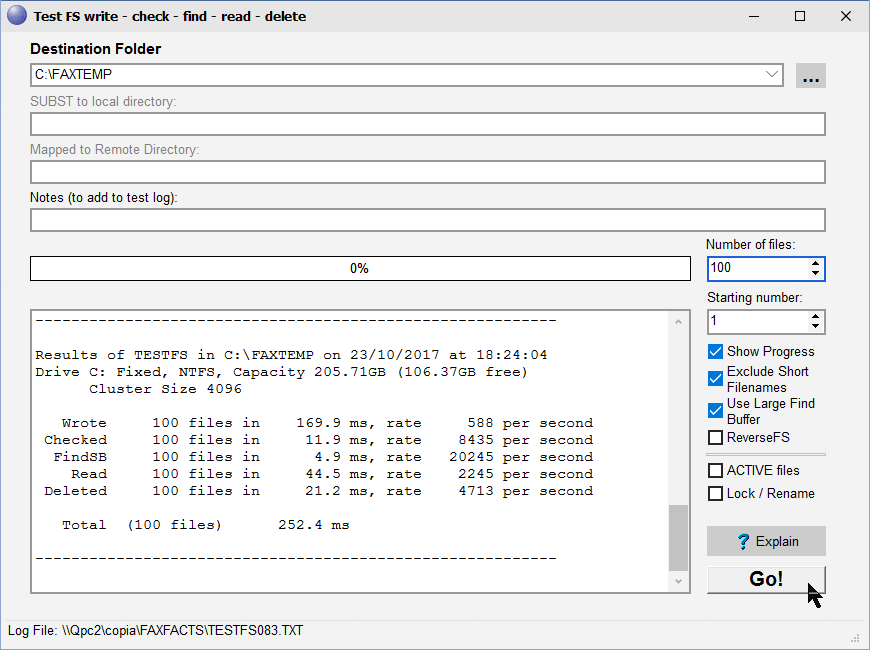
In normal mode (ACTIVE and Lock/Rename checkboxes not checked) when pointed to a folder on a local or network drive, the program will:
•Warn if there are already FS files in the folder, and offer to delete them.
•Write a number of dummy FS files of typical size. As with a broadcast launcher, each file is written and then renamed.
•Check by name that each file written is present on the disk
•Read the folder with a findfirst/findnext loop to find all the files. If a folder with a UNC pathname is found to be local, it is tested both with the UNC pathname and with the local drive letter.
•Read all the files
•Delete all the files
This mode of the program does not attempt to simulate the effect of multiple nodes reading and writing a TOSEND queue, but does provide a useful comparison of raw speeds in a CopiaFacts context.
The options to exclude short filenames and to use a large find buffer are available on Windows 7, Server 2008R2 and later. Showing the progress bar will significantly slow down operations.
The Explain button displays information about the tests performed.
A log is written in the FAXFACTS folder showing the results of each step.
Advanced Test and Simulation
When the ACTIVE or Lock/Rename checkbox is set TESTFS will operate in a way that simulates multiple nodes and multiple channels. We recommend that you arrange for Copia support to assist you with setting up and interpreting these tests.
In this mode three additional settings are needed:

The simulated processing then proceeds as follows:
•An ACTIVE or WORK folder is created in the selected destination folder if not already present. Any FS files already in this folder will be deleted.
•The specified number of FS files are written.
•A findfirst/findnext scan is started for each simulated 'node'
•The specified number of channel threads are started in each 'node'
•As each file is found for processing, a thread reads the file and 'processes' it for the specified time. A value of 5 seconds is suitable for testing e-mail FS files, or up to 60 for fax. However a shorter time for faxes makes for quicker tests and normally yields a similar amount of useful information. The specified time is adjusted randomly by ±20% to better simulate real FS file processing.
•Each FS file is deleted after 'processing'.
As in the COPIAFACTS engine, there is a mechanism to prevent an FS file being processed in multiple channel threads.
•If the "ACTIVE files" checkbox is checked, this takes the form of ACTIVE lock files written into an ACTIVE folder in the specified test directory. The presence of an ACTIVE file prevents another processing thread from picking up the same file.
•If the Lock/Rename checkbox is checked, the alternate protection mechanism described in Enhanced FS Handling is used. In this case the file is locked and renamed into a WORK folder in the specified test directory. Because the FS file has been renamed, it cannot be picked up from the original folder by another processing thread.
For both types of locking, it is usual for files to continue to be returned from one findfirst/findnext scan even after they have been found and commenced processing in a different 'node'. This is more likely to happen in TESTFS than in a real COPIAFACTS engine.
The results of the test are available in the fields shown below, and are also logged.
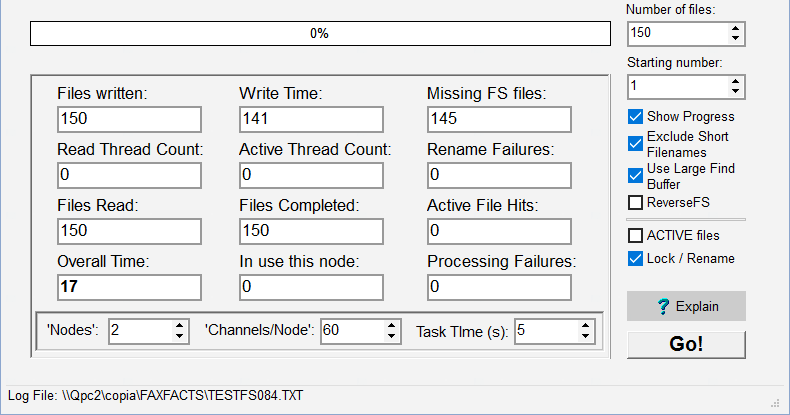
The fields have the following content:
| Files Written | Confirmation of the number of FS files written |
| Write Time | The elapsed time in milliseconds to write the file |
| Read Thread Count | The total number of threads started to read FS files. After all the files have been read, the thread for the simulated channel is terminated. |
| Active Thread Count | The total number of threads which are 'active processing' an FS file. The thread is idle during this time, which is comparable to a fax board processing a fax, but not to actually processing a VoIP or FoIP operation or an e-mail. |
| Files Read | The number of FS files which have been opened for 'processing' |
| Files Completed | The number of FS files which have completed 'processing' and been deleted. |
| In use this node | The number of times an FS file has been found by the findfirst/findnext loop but is known to be already in use on the same node, so has been discarded. |
| Missing FS file | The significance depends on whether ACTIVE or Lock/Rename is in use: |
| ACTIVE | The number of occasions on which an FS file has been found by the findfirst/findnext scan, not identified as active in the same 'node', had an active file written for it, but then the original file cannot be found. This indicates a failure of the ACTIVE protection mechanism, and may result in a file being processed more than once. |
| Lock/Rename | The number of occasions on which an FS file has been found by the findfirst/findnext scan, but has already been locked or renamed for use by another channel thread, so has been ignored. This is a normal situation. |
| Rename Failures | Count of the number of times that a rename operation has failed (excluding those cases in Missing FS file above). This is an error situation. |
| Active File Hits | The number of occasions on which an FS file has been found by the findfirst/findnext scan, but has already been locked by another thread having written an ACTIVE file so has been ignored. This is a normal situation. |
| Processing Failures | The number of occasions on which an FS file failed to be read or deleted, or the deletion of an ACTIVE file failed. |
| Overall Time | The elapsed time in seconds until all files have been processed. Note that adjusting this value in proportion to the number of files cannot be used to give an accurate estimate for a much larger volume of files, because TESTFS runs slower than average until all the threads are loaded, and as the processing tails off at the end. |
When a test ends, the values should cease to update. Temporarily unchecking the selected one of the two checkboxes will show the full log entries.
TESTFS can be used to simulate multiple nodes by running multiple instances on multiple machines, directed to the same network folder. To do this:
•First prepare the test with the settings you need on the first machine, but do not press Go. The node count value should normally be set to 1 in this case.
•On another machine, set up TESTFS with the same settings, the same destination folder, and especially the same selected checkbox (ACTIVE files or Lock/Rename). The protection method will fail if these two checkboxes differ between concurrent instances. Set the Number of Files to 0 on this machine.
•Start first the TESTFS instance(s) with number of files zero.
•Finally start the first TESTFS instance.
In this TESTFS mode there are other advanced settings:
•The $active_life and $lock_retries parameters in FAXFACTS.CFG are used in the processing of ACTIVE files.
•An environment variable LRN_OPTIONS can be set with the value Copy. This forces the use of a lock-copy-delete mechanism instead of a locked rename. These options may be needed for non-Windows file systems.
After changing these CFG commands or environment settings, you must restart TESTFS by restarting CFTEST. Other TESTFS settings do not require a restart.
