Introduction
Installing a new CopiaFacts license key has three main purposes:
 | For a permanent CopiaFacts License, setting a maintenance date forward and adding your new key will allow you to use any new releases of CopiaFacts software issued during the maintenance period. It has no effect on the software versions you are already using, which will continue to run even if you have not renewed your CopiaFacts maintenance and support option. |
| For a limited-period CopiaFacts License, setting the expiry date forward and adding your new key will allow CopiaFacts applications to continue running until the new expiration date, with continuing CopiaFacts maintenance and support. |
| For either license type, a new key may also be issued to extend your existing license with a higher number of channels or additional optional features. When the key has been installed, you can then use CFHWL to configure the additional resources as necessary. |
| IMPORTANT: If the license is to reduce your system capactity or features, see the Reducing Capacity subtopic. |
Installing the .COPIAKEY File Automatically
When you renew your CopiaFacts maintenance and support option, or extend a CopiaFacts License, a new license key will be issued by Copia or your CopiaFacts reseller. Normally the key will be e-mailed to you with a copy of a PDF file confirming the key and license details. The key will be provided in a file named:
SSSS-YYYY-MM.CopiaKey
where SSSS is your CopiaFacts serial number, YYYY is the year of maintenance expiration and MM is the month of maintenance expiration.
| First, save the .CopiaKey file, we suggest in a folder named COPIAKEYS under the FAXFACTS folder. This folder is created for you by the installer. Do not double-click it directly in your e-mail client, which may have placed it in an inaccessible temporary location. |
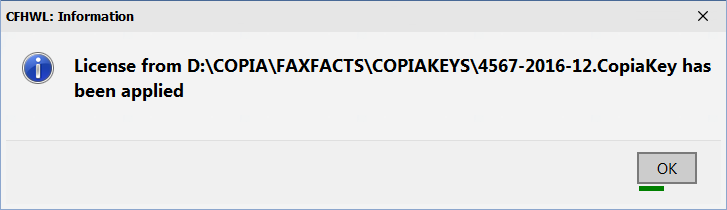
| Double-click this file to launch CFHWL and install the new key. A confirmation message will be shown but the program will not open: |
Manually Installing the .COPIAKEY File
Alternatively, you can launch the Configurator (CFHWL) manually from the CopiaFacts items in the Start menu, and click on Load CopiaKey File.
For customers who are unable to receive the .CopiaKey file due to site restrictions, the same data can be provided in text format. Copy the provided block of text to the clipboard and click the 'Enter Key' button. You can either exclude or include the surrounding = lines. If the clipboard does not contain a valid key block it will be shown in red: select and copy the correct text and click the Paste button.
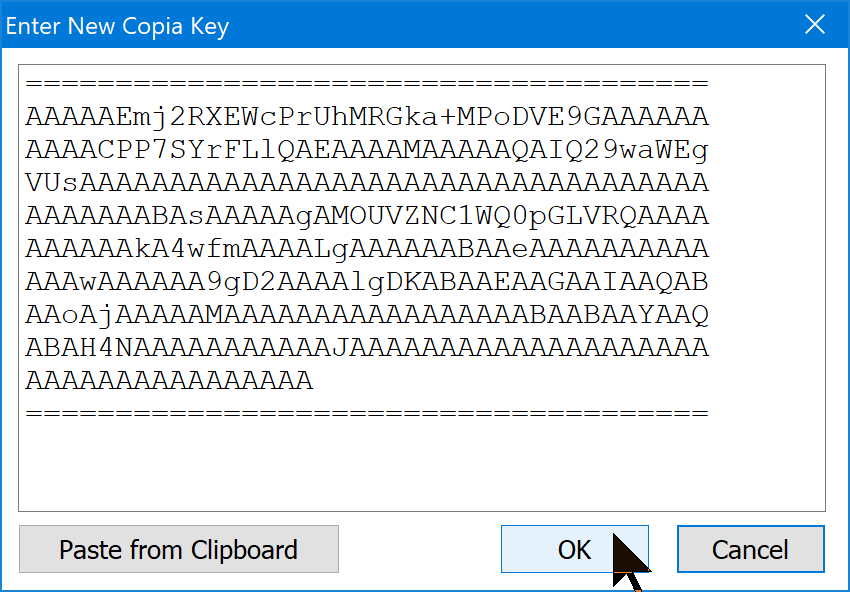
Click OK to create and load a temporary .CopiaKey file from the pasted text (it will be deleted after use from your Windows temp folder).
After the key has been manually installed by one of these methods, commit and save it from CFHWL as usual.
Manually Entering the Key
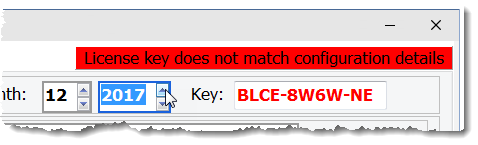
If you do not have a .CopiaKey file or its text-file version, you can edit the date and key fields on the license screen from the printed license information.
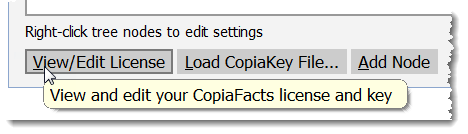
First, display the license:
If you change the date this will invalidate the license, and prevent saving the file, until you have also entered the correct key:
Using the new key
A warning will be shown on the COPIAFACTS engine if it continues to run after maintenance has expired, and restarting COPIAFACTS after installing a current key will remove this warning.
You should also restart COPIAFACTS after extending your license or making any change to it, and also restart any applications (for example FFEXTERN or CFGATEWAY) which are affected by the change. For safety, a reboot to restart everything is recommended after a license change.
