The document converter includes one general-purpose printer driver and two extra printer drivers which can be installed and configured for special applications which need to handle more complex documents. The extra printer drivers are normally selected by the $convert_options keyword ResConv.
 | CopiaFacts can now convert most document types without needing the Document Converter Print Driver to be installed. See the table of conversion options in the topic Supported Document Formats. |
| MOST CopiaFacts users no longer need to install these printer drivers for document conversion. |
The standard printer driver converts directly to fax format. The extra drivers are configured to emulate either an existing printer with higher resolution or a built-in 300x300 printer, and the image is then converted to the appropriate high-res or low-res fax as needed. This may produce a more reliable and accurate result for complex documents which embed either high-res images or (in the case of Excel documents) high-res printer settings.
The selected printer driver may be set as the system default printer at conversion time, and if it was not already the default printer, the previous setting is not restored. You should therefore try to ensure that document conversions are done on a machine which is not needed for normal printing tasks.
| In Windows 10, the default printer settings allow Windows to change the default printer to the last-used printer. We recommend turning this option off in Settings/Printers and Scanners/Let Windows Manage My Default Printer. It has been reported that this setting can sometimes be quietly changed back on by Windows, and since it can disrupt the operation of the Document Converter print drivers, CVSINGLE will attempt to turn it off when the print drivers are in use. |
These printer drivers are reserved for use by CopiaFacts Document Converter applications and will not produce output if selected manually for printed output. When you choose to use the CopiaFacts printer drivers, only Microsoft Office documents, HTML conversions using Internet Explorer, and PDF documents converted using an Adobe product use the printer driver: other conversions create a TIF file directly.
The Document Converter (FFEXTERN) runs the CVSINGLE program which runs (automates) the Office or Adobe application and causes it to print to the driver. Then the FFCVRT program is called by the driver and communicates with CVSINGLE to set the output file name and other options. CVSINGLE converts a single document at a time. Only one instance of CVSINGLE can be running at the same time.
"Copia Fax Converter" Printer Driver
For most applications, the standard Document Converter Print driver (named 'Copia Fax Converter') will suffice to handle all conversions that use a print driver.
The driver is installed by the CopiaFacts server installer when you select Document Converter and the sub-option 'Standard Document Converter Print Driver'. Check that the new 'printer' shows up in your Printers special folder.
The installer will set initial default options for document handling, including setting Letter 'paper' size if the locale is USA and A4 otherwise. You may wish to experiment with other dithering parameters, which can affect the quality and size of output images and colored areas.
Printer Default Resolution
For historical reasons conversions which use the Copia Fax Converter Printer Driver default to use 200x200 resolution, because several Windows applications printed better with this setting. However this does produce slight dimensional distortion and most applications can now handle 204x196.
The default resolution can be overridden globally in an environment variable or using $environment, setting DEFAULT_CONVERTER_RES to one of the values 200x200, 204x196 or 204x98. The last value is for use if the majority of your conversions are to be to low-resolution faxes.
For individual faxes, you can set one of the above values in an FS file variable CONVERTER_RES.
The Printer Driver output compression format for TIF files is Modified Huffman (MH) which can be transmitted on all supported boards.
Resolution Conversion Printer Drivers
The two optional printer drivers are named 'Copia Fax RCH Printer Driver' and 'Copia Fax RCL Printer Driver'. These printers are configured for Resolution Conversion and may optionally configured manually to emulate an already installed printer.
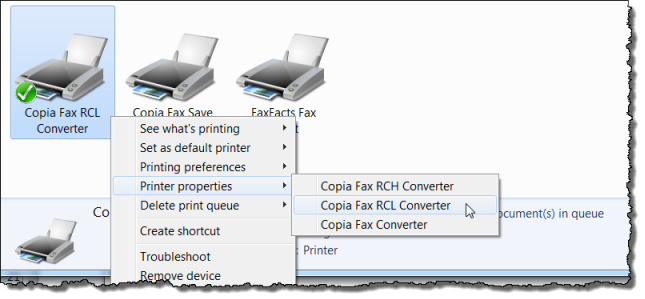
To configure the printer driver for emulation, first select each in turn in the Devices and Printers area of Control Panel, right-click, and select Printer Properties for the printer:
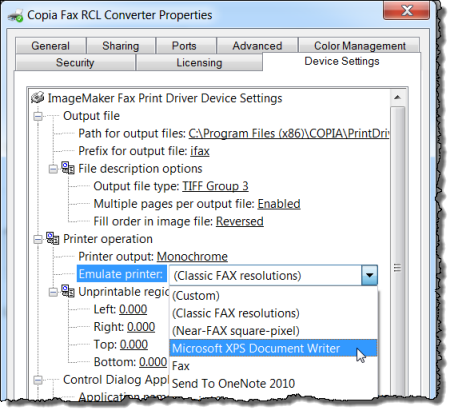
Then in Device Settings, you can optionally select an already installed printer to emulate. We recommend the Microsoft XPS Document writer, which will be installed with recent versions of Office. This has 600x600 resolution capability and also has no 'unprintable regions'. Click OK after selecting the printer. If you do not want to emulate a specific printer, select "(Classic FAX Resolutions)".
Next, right-click each printer in turn and select Printing Preferences, then Advanced:
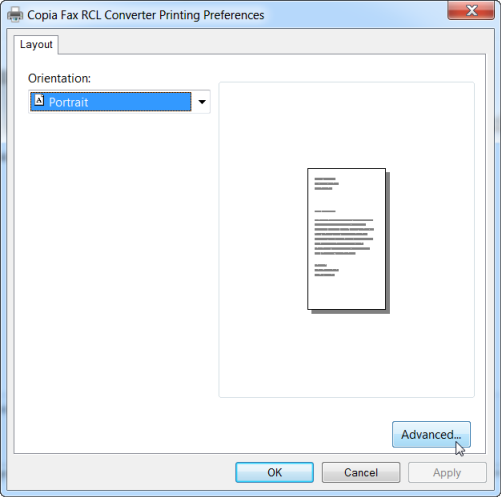
There are three settings of significance: first, make sure that Resolution Conversion is enabled:

Then select Resolution reported to Windows NT. The pulldown content will depend on the printer selected. Set it to 300x300 or 600x600:

Finally, select Output Resolution, and set it to 204x196 for the RCH printer and 204x98 for the RCL printer. OK out of the two dialogs.

These settings will allow the document to be printed at a resolution expected by applications such as Office, but will then optimize the conversion of the document to a faxable resolution in the driver.
If you wish, you can also use the above procedure for other Copia printer drivers. However we do not recommend the use of this technique for the FFMERGE driver.
